# User Option

<figure><img src="https://1937909199-files.gitbook.io/~/files/v0/b/gitbook-x-prod.appspot.com/o/spaces%2F-Lm_hW5MApY3J0lRhi0M%2Fuploads%2FvTwyYYn7aU3W7Fq7xq7g%2Fimage_2024-06-07_184134753.png?alt=media&#x26;token=753f22a2-86d7-40fa-bb4c-d842af558528" alt=""><figcaption></figcaption></figure>

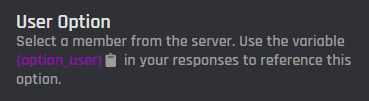
The user option block allows for any user to be selected from the server and used later in the commands actions. User IDs may also be used.

<figure><img src="https://1937909199-files.gitbook.io/~/files/v0/b/gitbook-x-prod.appspot.com/o/spaces%2F-Lm_hW5MApY3J0lRhi0M%2Fuploads%2F3KO5VcIieRrSMmHCLJXc%2Fimage_2024-06-07_181816651.png?alt=media&#x26;token=94c9074d-ba6a-4f09-850c-61d5a6064d4c" alt=""><figcaption></figcaption></figure>

You can retrieve the variable of the option via the **Clipboard** or the block itself. The format of the variable is `{option_optionname}`, where `optionname` is the [name](#option-name) of the option.

Additionally, user option variables can be combined with other variables to target the user selected in the option.  `{}` brackets must be excluded from the option when used as a target, like in the example below:

<table><thead><tr><th width="364">❌ Wrong</th><th>☑️ Correct</th></tr></thead><tbody><tr><td><code>{user_name[{option_user}]}</code></td><td><code>{user_name[option_user]}</code></td></tr><tr><td><code>{BGVAR_money[{option_user}]}</code></td><td><code>{BGVAR_money[option_user]}</code></td></tr></tbody></table>

<figure><img src="https://1937909199-files.gitbook.io/~/files/v0/b/gitbook-x-prod.appspot.com/o/spaces%2F-Lm_hW5MApY3J0lRhi0M%2Fuploads%2Fm3ugQGknMQb0fQnt0Yea%2Fimage_2024-06-08_124138860.png?alt=media&#x26;token=074a7375-02e5-44e5-b3b4-91af5ffbef7a" alt=""><figcaption></figcaption></figure>

## Option Name

This field requires an input for your unique option name. The designated name will then be the reference for your option variable.

<figure><img src="https://1937909199-files.gitbook.io/~/files/v0/b/gitbook-x-prod.appspot.com/o/spaces%2F-Lm_hW5MApY3J0lRhi0M%2Fuploads%2FepV9xmmJooC5PYrDwyyY%2Fimage_2024-06-07_181906364.png?alt=media&#x26;token=737b237a-bbcb-4b9f-945d-a707484541c5" alt=""><figcaption></figcaption></figure>

## Option Description

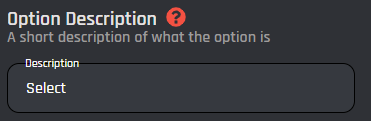
The option description field allows you to assign a custom description to your option. It is useful to describe what the option is used for.

<figure><img src="https://1937909199-files.gitbook.io/~/files/v0/b/gitbook-x-prod.appspot.com/o/spaces%2F-Lm_hW5MApY3J0lRhi0M%2Fuploads%2FskxkjohGIbNV7dgMjVk5%2Fimage_2024-06-07_181923947.png?alt=media&#x26;token=f548faec-e349-4c0b-a4e5-b8ef67fdeedf" alt=""><figcaption></figcaption></figure>

## Set Required

With this switch you are able to toggle if the option should be required or not in order to execute the command.

<figure><img src="https://1937909199-files.gitbook.io/~/files/v0/b/gitbook-x-prod.appspot.com/o/spaces%2F-Lm_hW5MApY3J0lRhi0M%2Fuploads%2FrObC5usM1A0DZ35MHPx8%2Fimage_2024-06-07_182022364.png?alt=media&#x26;token=fde69d8c-e568-42be-9d63-1dbdceff1611" alt=""><figcaption></figcaption></figure>


---

# Agent Instructions: Querying This Documentation

If you need additional information that is not directly available in this page, you can query the documentation dynamically by asking a question.

Perform an HTTP GET request on the current page URL with the `ask` query parameter:

```
GET https://documentation.botghost.com/custom-commands-and-events/options/user-option.md?ask=<question>
```

The question should be specific, self-contained, and written in natural language.
The response will contain a direct answer to the question and relevant excerpts and sources from the documentation.

Use this mechanism when the answer is not explicitly present in the current page, you need clarification or additional context, or you want to retrieve related documentation sections.