> For the complete documentation index, see [llms.txt](https://documentation.botghost.com/llms.txt). Markdown versions of documentation pages are available by appending `.md` to page URLs; this page is available as [Markdown](https://documentation.botghost.com/custom-commands-and-events/options/text-option.md).
# Text Option
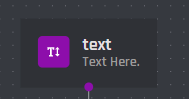
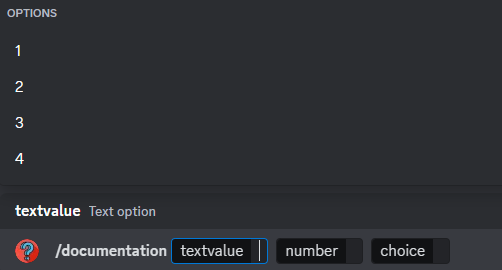
This block is a plain text option which allows you input a text value when entering your command on Discord.
You can retrieve the variable of the option via the **Clipboard** or the block itself. The format of the variable is `{option_optionname}`, where `optionname` is the [name](#option-name) of the option.
## Option Name
This field requires an input for your unique option name. The designated name will then be the reference for your option variable.
## Option Description
The option description field allows you to assign a custom description to your option. It is useful to describe what the option is used for.
## Set Required
With this switch you are able to toggle if the option should be required or not in order to execute the command.
## Add Choices
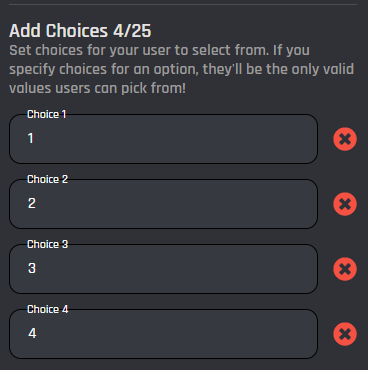
This is an optional section is where you can add choices into your option. Choices allow the user to select something from a fixed set of values. There is a maximum number of 25 choices.
## Autocomplete
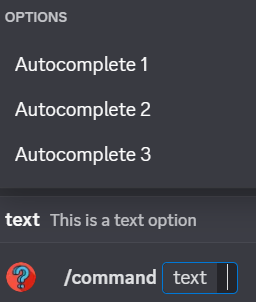
Autocomplete is a feature for slash command text options that shows users a list of suggestions as they type. It makes commands easier to use, reduces typing errors, and creates a smoother experience.
Unlike [choices](#add-choices), the autocomplete feature will add choices to the action that are not required to be the same, meaning you can follow them, but it's not mandatory.
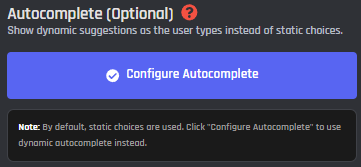
Autocomplete can be configured by pressing the "Configure Autocomplete" button located in the settings of the text option.
{% tabs %}
{% tab title="Basic Mode" %}
The basic settings have been enabled by default when you start to configure autocomplete.
### Choices
Choices can be addded by pressing the "Add Autocomplete Choice" in the image above.
#### Label
The label is what's shown as choice to the user when they use the command.
#### Value
The value is what is returned as the `{option_optionname}` variable. The value is not visible to the user and can be something else than the label.
{% endtab %}
{% tab title="Bulk Mode" %}
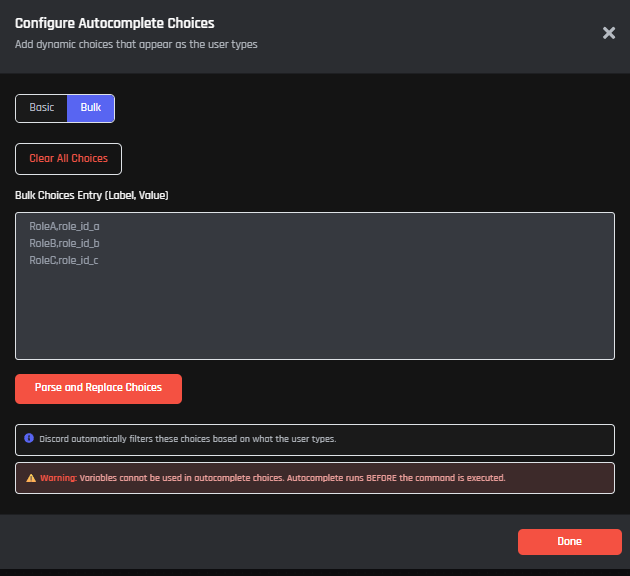
To access bulk mode, you have to enable it in the top of the autocomplete configuration.
### Bulk Choices
Bulk choices can be added by pasting the lable and value seperated with a comma. An example can be found below:
```
label1,value1
label2,value2
label3,value3
```
When you have added the choices, simple press the "Parse and Replace Choices" button below the field. The choices will then also be visible when in Basic Mode.
{% endtab %}
{% endtabs %}