> For the complete documentation index, see [llms.txt](https://documentation.botghost.com/llms.txt). Markdown versions of documentation pages are available by appending `.md` to page URLs; this page is available as [Markdown](https://documentation.botghost.com/custom-commands-and-events/events/timed-events.md).
# Timed Events
Trigger custom events through schedules and intervals
The timed events module allows users to setup events to be triggered on the specified days/times selected. This is super handy for reminders or other important messages that need to be sent every so often.
## Settings
Here you can customise the settings for the module, create new events, edit events and more.
### Timezone
The timezone section allows you to specify the timezone you wish the events to trigger in. By default it will be set to your current timezone on your computer/device.
### Add a new timed event
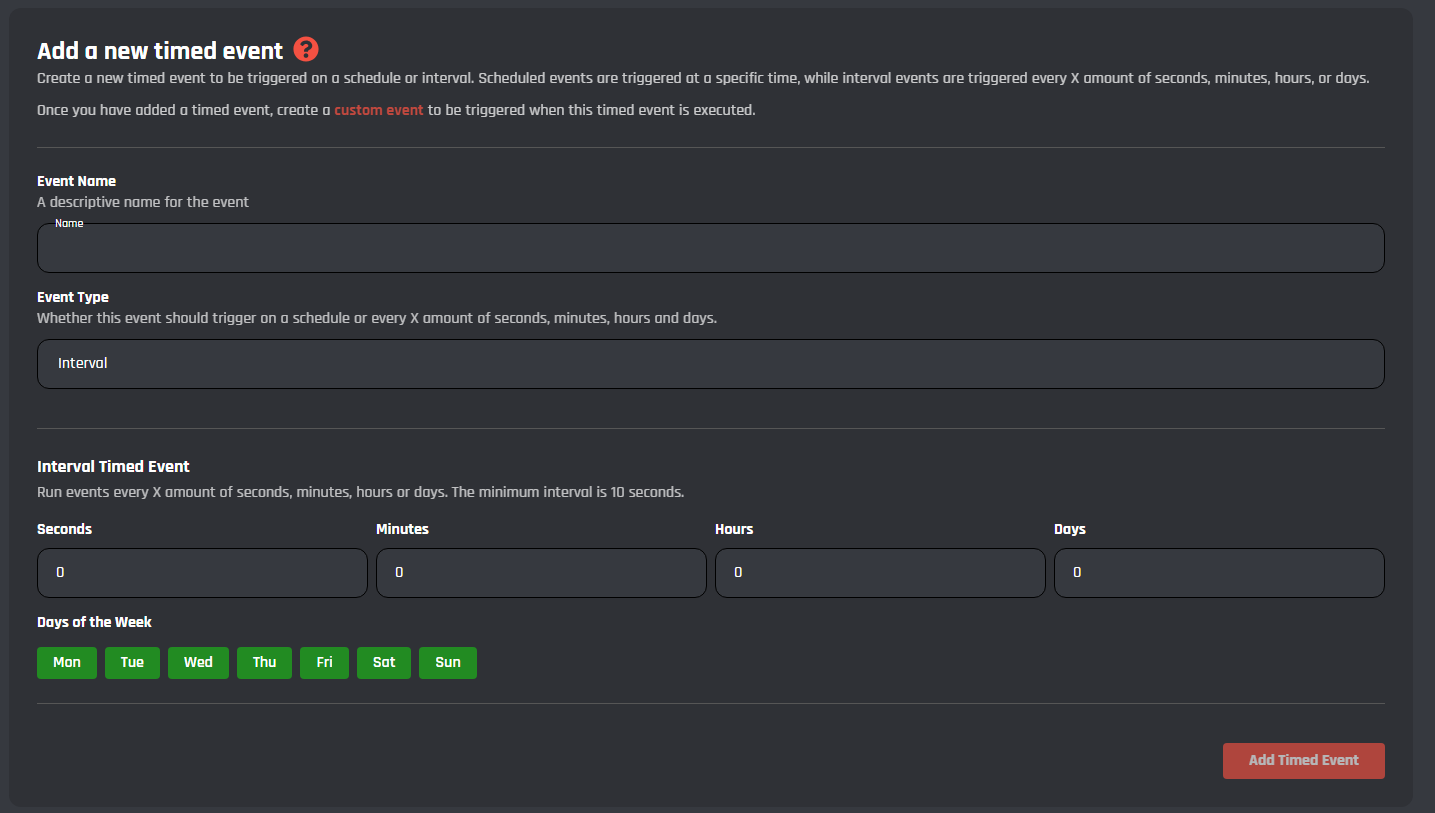
Below you can see a image of the event creator. Here you can select the trigger time, trigger day, name and type of event.
### Event Type
Here you can select between 'Schedule' or 'Interval'. By default it is set to 'Interval'. Selecting the 'Interval' type will allow you to make the event trigger on a interval (Run events every X amount of seconds, minutes, hours or days. The minimum interval is 10 seconds.) (Green = active Red = Disabled)
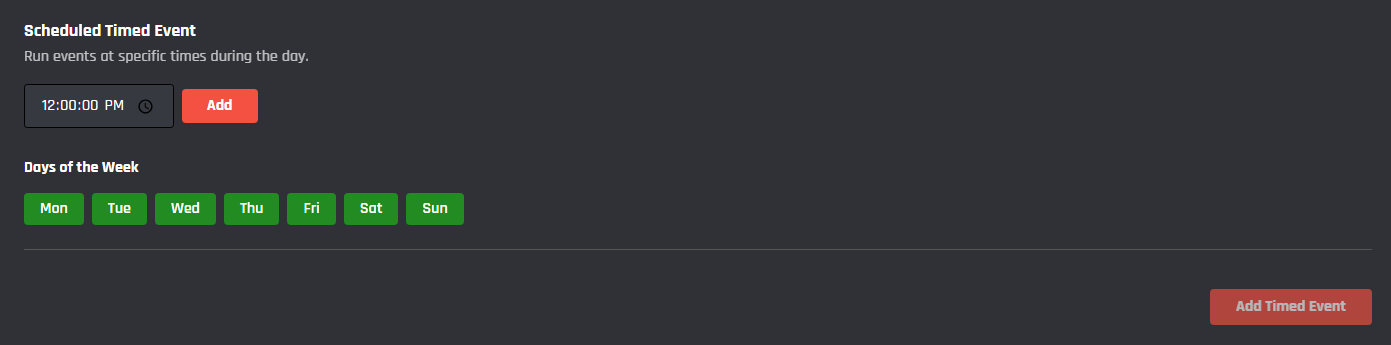
Setting this to Schedule will display some new options:
Here you can set the event to tigger every X day(s) at X time. Example, run the event every Monday at 12:00:00PM. (Green = active Red = Disabled)
## Active Timed Events
Here you can find all of your created timed events, you will be able to modify each one by clicking on the event.