> For the complete documentation index, see [llms.txt](https://documentation.botghost.com/llms.txt). Markdown versions of documentation pages are available by appending `.md` to page URLs; this page is available as [Markdown](https://documentation.botghost.com/custom-commands-and-events/conditions/role-condition.md).
# Role Condition
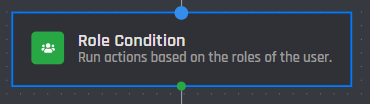
This condition checks what role a specific user has and compares whether they have it or not.
## Run Multiple Actions
This option allows you to set the condition to run multiple actions at the same time. This means if multiple conditions are met, then each true condition will be run simultaneously. When disabled, only the first met condition will be executed.
## User Target
This field is where you choose one of 3 user targets you would like the condition to check the roles of.
{% tabs %}
{% tab title="User who used the command" %}
This type of target will check the roles of the user who triggered the command / event or clicked a [button](/custom-commands-and-events/actions/legacy-reply-actions/send-a-message-with-attached-buttons/buttons.md) / [menu option](/custom-commands-and-events/actions/legacy-reply-actions/send-a-message-with-a-select-menu/menu-option.md).
{% endtab %}
{% tab title="User Option" %}
The user option target will check the roles of a user selected from the command's [user option.](/custom-commands-and-events/options/user-option.md)
### User Option
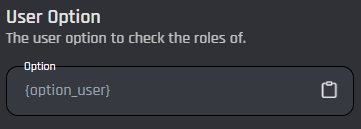
This field is where you will input the user option variable. Keep in mind this field only accepts [user options](/custom-commands-and-events/options/user-option.md), so you must have one in your command for this field to work.
{% endtab %}
{% tab title="User ID" %}
If the user ID option is selected then the condition will check the roles of the user with that ID.
### User ID
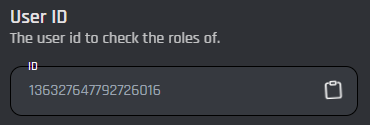
This field is where you input a plain user ID or a [variable](/custom-commands-and-events/variables.md) that contains a user ID. Make sure there are no extra symbols or spaces when inputting this.
{% endtab %}
{% endtabs %}
## Role
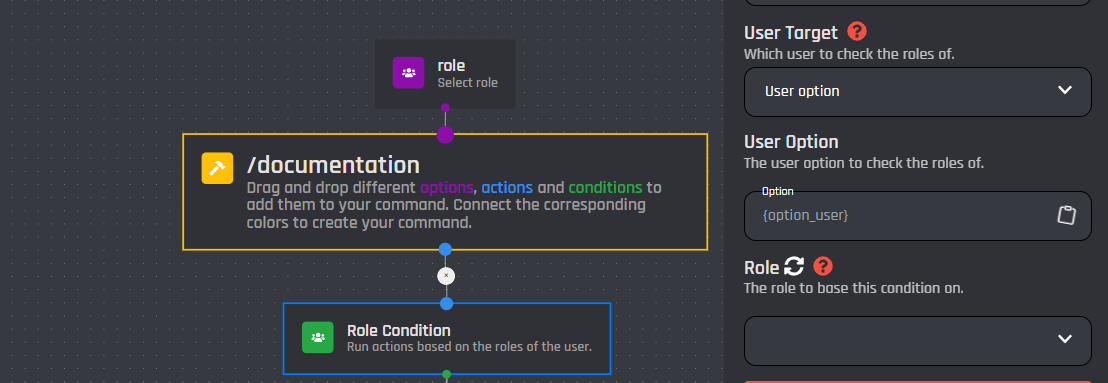
This dropdown menu is where you choose the certain role to compare for the condition. You will be able to select a [role option](/custom-commands-and-events/options/role-option.md) as well under the Command Options section of the list as shown in the image. If your role isn't showing, click the refresh icon next to the [#role](#role "mention") title.
{% hint style="success" %}
Click the Add Condition block to add the compared role to your builder.
{% endhint %}
{% hint style="info" %}
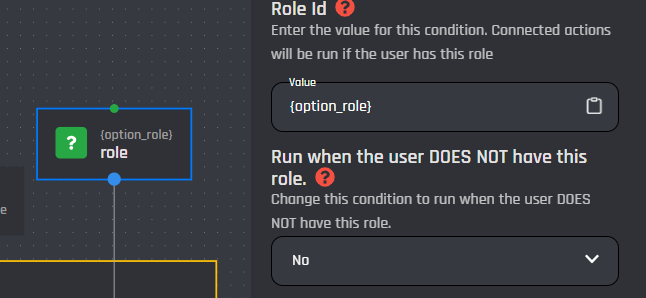
Click the block on the builder to access the following menu.
{% endhint %}
## Role ID
In this section you can edit the compared role by switching the role ID. [Variables](/custom-commands-and-events/variables.md) may be used this in field or a plain role ID.
## Run when the user DOES NOT have this role
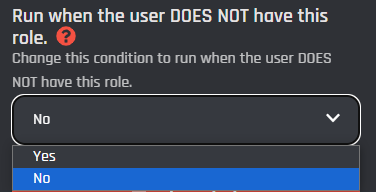
This option, when enabled, allows you to run the actions below the selected block when the user does not have the role, instead of running when the user has it.
Here is an example layout of the condition: