> For the complete documentation index, see [llms.txt](https://documentation.botghost.com/llms.txt). Markdown versions of documentation pages are available by appending `.md` to page URLs; this page is available as [Markdown](https://documentation.botghost.com/custom-commands-and-events/conditions/comparison-condition.md).
# Comparison Condition
With the comparison condition you are able to run actions based off of the difference between the values that are being compared. This condition allows for multiple different comparison types and can be used for a multitude of different systems. An also great feature about this is that it can be used for events and commands alike and compares any value that other conditions cannot.
## Run Multiple Actions
This option allows you to set the condition to run multiple actions at the same time. This means if multiple conditions are met, then each true condition will be run simultaneously. When disabled, only the first met condition will be executed.
## Base Value
The base value field is what the other value will be compared against. Any [variables](/custom-commands-and-events/variables.md) or [options](/custom-commands-and-events/options.md) can be used in this field. Keep in mind that this is the value that the condition will be based around.
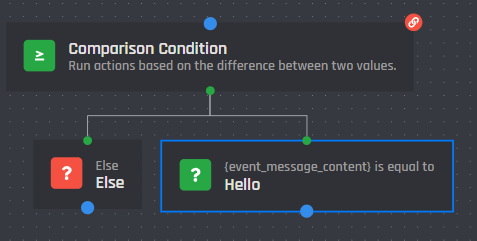
For example, *if `{event_message_content}` equals `Hello`*, means that the condition will be met when `{event_message_content}`is `Hello` or, in simpler words, that the content of the message is `Hello`.
## Comparison Value
This field is the value to compare against the base value of this condition. In the example above, "Hello" represents the comparison value. Click the add condition button in the image below to keep adding more compared values against the base value.
{% hint style="info" %}
Click the Comparison Block Condition you added to access the following menu.
{% endhint %}
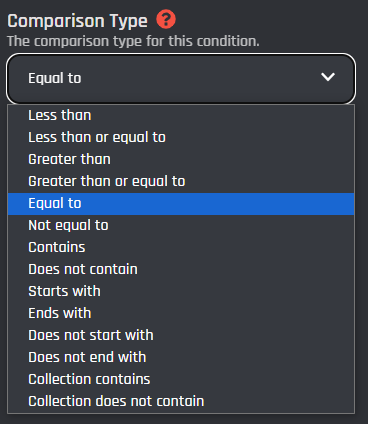
## Comparison Type
This section is how you can choose the comparison type for the condition. The available choices are listed below.
## Ignore Case
When this setting is applied all messages/text that match your predetermined value you set in the conditional block regardless of capitalization will trigger the action to execute.\
\
When this setting is disabled, the text/message detection will be case sensitive and will not trigger for the same value set if it is missing capitalization or has capitalization as opposed to the value you set in the conditional block.
Example for a comparison layout: