> For the complete documentation index, see [llms.txt](https://documentation.botghost.com/llms.txt). Markdown versions of documentation pages are available by appending `.md` to page URLs; this page is available as [Markdown](https://documentation.botghost.com/custom-commands-and-events/conditions/channel-condition.md).
# Channel Condition
This condition will run actions based off the channel that the command / event was triggered in or where a [menu option ](/custom-commands-and-events/actions/legacy-reply-actions/send-a-message-with-a-select-menu/menu-option.md)/ [button](/custom-commands-and-events/actions/legacy-reply-actions/send-a-message-with-attached-buttons/buttons.md) was clicked.
## Run multiple actions
This option allows you to set the condition to run multiple actions at the same time. This means if multiple conditions are met, then each true condition will be run simultaneously. When disabled, only the first met condition will be executed.
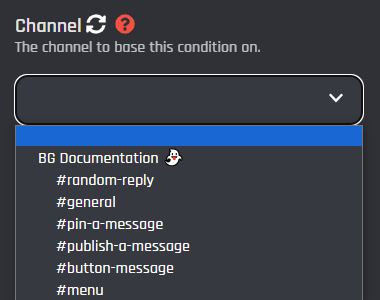
## Channel
This section is a dropdown menu of channels that may be selected for the condition to compare. Click the refresh icon next to the title if the channel you're looking for isn't showing.
Click the add condition button to add one or more compared channels to the condition
You may individually click on a compared channel to edit the values and more.
{% hint style="info" %}
Click the block on the builder to access the following menu.
{% endhint %}
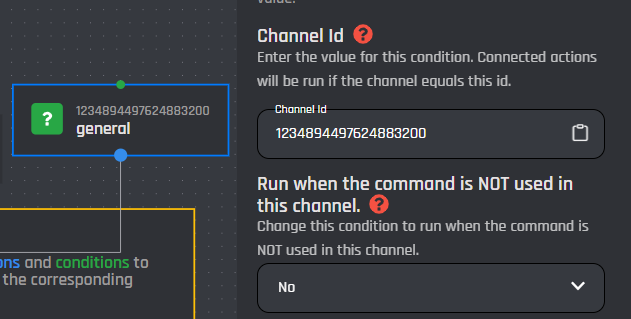
## Channel ID
In this section you can edit the compared channel by switching the channel ID. [Variables](/custom-commands-and-events/variables.md) may be used this in field or a plain channel ID.
## Run when the command is NOT used in this channel
This option, when enabled, allows you to run the actions below the selected block when the user does not use the command in the specific channel, instead of running when the user does.
Here is an example layout of the condition: