> For the complete documentation index, see [llms.txt](https://documentation.botghost.com/llms.txt). Markdown versions of documentation pages are available by appending `.md` to page URLs; this page is available as [Markdown](https://documentation.botghost.com/custom-commands-and-events/card-studio.md).
# Card Studio
Design image cards, like welcome cards, rank cards and profiles, and send them from any command or event.
Card Studio is where you design image cards: pictures with a member's name, avatar and anything else you add. Your bot draws the card and sends it in a message.
You can use cards in two places:
* The [Welcomer](/server-management/welcomer.md), for welcome, goodbye and boost cards.
* The **Make an Image Card** block, in any command or event.
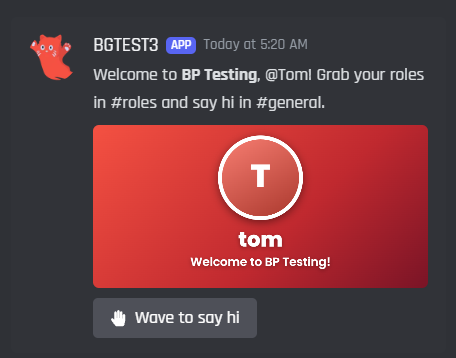
A card your bot sent
{% hint style="info" %}
**Make an Image Card** needs Premium in your own commands and events. Cards in the Welcomer are free.
{% endhint %}
## Send a card from a command
{% stepper %}
{% step %}
### Add the block
Open your command in the builder. Under **Actions**, find **Make an Image Card** and drag it into your command.
{% endstep %}
{% step %}
### Pick a design
Click the block to open its settings. Keep **Design it here** and pick a template, or press **Open Card Studio** to make your own.
* **A** **Design it here**: the design is kept in this block.
* **B** **Open Card Studio**: change anything on the card.
* **C** Templates. Search them, or pick a type like Welcome or Goodbye.
{% endstep %}
{% step %}
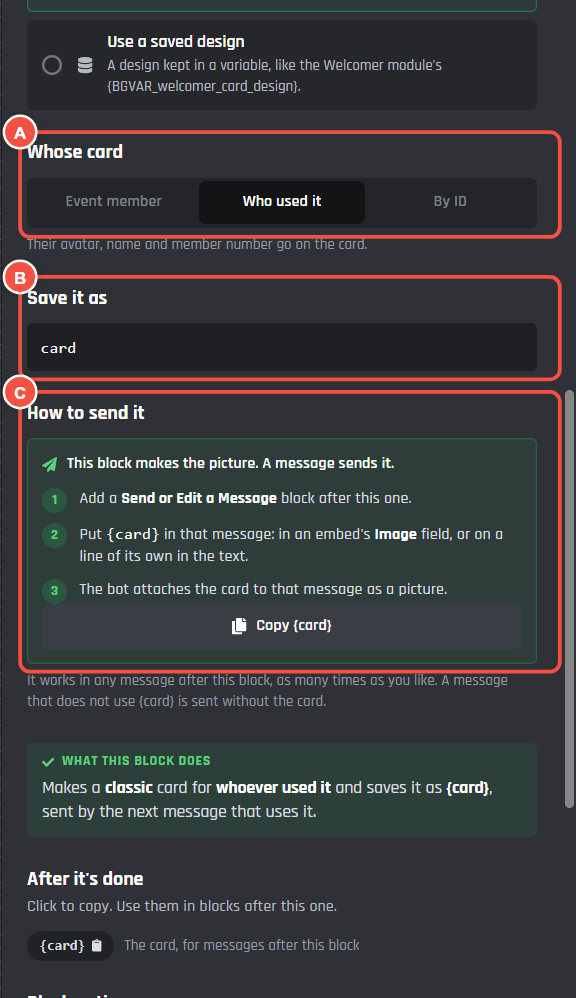
### Choose whose card it is
Scroll down to **Whose card**. Pick who goes on the card: usually the member who used the command, or a member by their ID.
* **A** **Whose card**: whose avatar, name and member number go on the card.
* **B** **Save it as**: the name of the card. `card` gives you `{card}`.
* **C** **How to send it**: the block makes the picture, a message sends it.
{% endstep %}
{% step %}
### Send it in a message
Add a **Send or Edit a Message** block after the card block. Put `{card}` in that message, either in an embed's **Image** field or on a line of its own.
Press **Copy {card}** in the block's settings to copy it.
{% hint style="info" %}
Making two cards in one command? Give each one its own name under **Save it as**, like `rank` and `badge`. Then use `{rank}` and `{badge}`.
{% endhint %}
{% endstep %}
{% endstepper %}
## Design a card
Press **Open Card Studio** to open the designer. Every change shows on the card straight away.
* **A** **Templates**: ready made designs to start from.
* **B** **Layers**: every piece of the card. Click one to change it, or press the eye to hide it.
* **C** **Add a layer**: text, an avatar, an image, a shape, a badge, a bar or a grid. Click one, or drag it onto the card.
* **D** The card. Drag pieces to move them. Double-click text to type on the card.
* **E** Settings for the layer you picked, like its text, font and colours.
* **F** **Send me a test**: your bot DMs you the card.
When you're done, press **Done** or click outside. Your changes are kept.
### Put member info on the card
Text layers can use variables, like `{user_name}` or `{member_number_ordinal}`. Under the text box, press **Add a variable** to see them all.
### Save your own templates
Made a design you like? Press **Your templates** at the top to save it, then use it on any other card.
## Your own pictures
Image and background layers can use a picture from a link on any plan. With Premium, you can also upload pictures from your computer.
| Plan | Pictures you can keep | Space | Uploads a day |
| ---------------- | --------------------- | ------ | ------------- |
| Premium | 25 | 50 MB | 15 |
| Priority Hosting | 100 | 250 MB | 50 |
Each picture can be up to 8 MB. Delete pictures you don't need under **Your pictures** to make room.