> For the complete documentation index, see [llms.txt](https://documentation.botghost.com/llms.txt). Markdown versions of documentation pages are available by appending `.md` to page URLs; this page is available as [Markdown](https://documentation.botghost.com/custom-commands-and-events/actions/voice-actions/join-a-voice-channel.md).
# Join a Voice Channel
The Join a Voice Channel action block will force the bot to join the specified channel, whether it is the voice channel you are currently in, a channel option, or a channel ID.
## Voice Channel
{% tabs %}
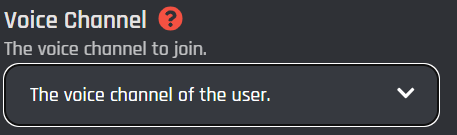
{% tab title="The voice channel of the user" %}
This will force the bot to join the voice channel of the user who clicked a [button](/custom-commands-and-events/actions/legacy-reply-actions/send-a-message-with-attached-buttons/buttons.md) / [menu option](/custom-commands-and-events/actions/legacy-reply-actions/send-a-message-with-a-select-menu/menu-option.md) or is running the command / event. This will only work if the user is in a voice channel before running the command / event.
{% endtab %}
{% tab title="Channel Option" %}
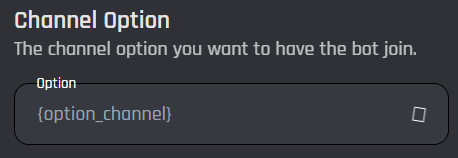
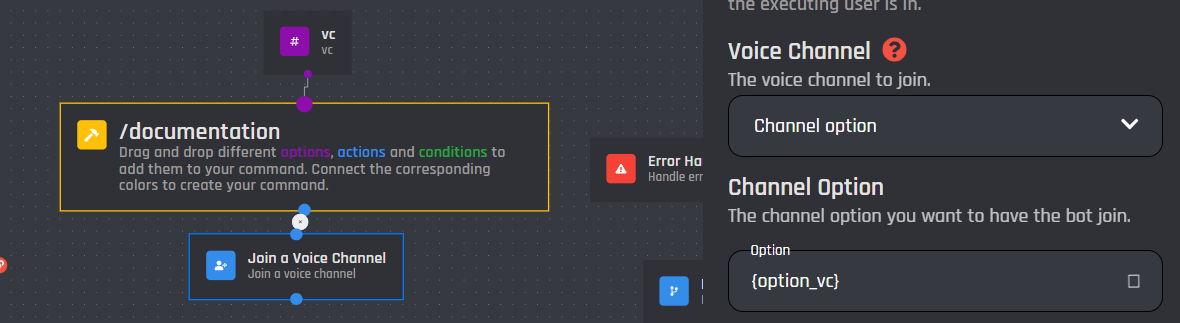
Selecting the channel option will prompt you with a new field to input your channel option variable. Only [channel options](/custom-commands-and-events/options/channel-option.md) will work in this field, use channel IDs / Variables in [#voice-channel-id](#voice-channel-id "mention").
### Channel option
Input your option variable into the field below.
{% endtab %}
{% tab title="Voice Channel ID" %}
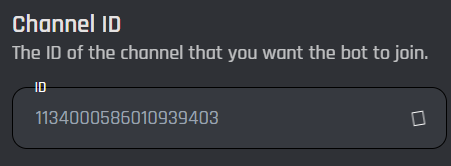
Selecting the channel ID type will prompt you to enter the ID.
### Channel ID
The channel ID can be a [variable](/custom-commands-and-events/variables.md) as well. Remember this has to be a plain ID with no extra symbols or spaces, it is case sensitive like every other ID field. If you use a variable, make sure it returns a plain ID.
{% endtab %}
{% endtabs %}
## Enable Success/Error Handles
Enable Success / Error Handles to detect success and errors inside of the action block. This allows you to run different actions if something goes wrong with your action. Inside of the handle, there are 2 different paths which are used to detect the outcome of the action. The green path on the bottom left side of the block indicates success, while the red path on the bottom right side of the block indicates error. You may attach action blocks to each side of the handle to get the outcome of your action block.
The Success/Error Handles feature includes 3 different error variables you can use to get information on why the action block encountered an error. Check them out [here](/custom-commands-and-events/variables.md#error-variables).