> For the complete documentation index, see [llms.txt](https://documentation.botghost.com/llms.txt). Markdown versions of documentation pages are available by appending `.md` to page URLs; this page is available as [Markdown](https://documentation.botghost.com/custom-commands-and-events/actions/server-actions/create-server-invite.md).
# Create Server Invite
The Create Server Invite block is self explanatory and creates a server invite for a specific server.
## Channel
This dropdown menu is the channel target for the server invite. You will have the three standard options to choose from.
{% tabs %}
{% tab title="Channel the command was run in" %}
If this type is selected, the server invite will be targeted towards the channel the command / event was run in.
{% endtab %}
{% tab title="Channel Option" %}
Selecting "channel option" will have the server invite target the channel a user selected inside the command from the [channel option](/custom-commands-and-events/options/channel-option.md).
### Channel Option
You must have a channel option added in the command in order for this field to work.\
Only [channel options](/custom-commands-and-events/options/channel-option.md) may be used in this field, IDs and [variables](/custom-commands-and-events/variables.md) can be used in [#channel-id](#channel-id "mention")
{% endtab %}
{% tab title="Channel ID" %}
This type selected from the dropdown will have the server invite target a specific channel ID or [variable ](/custom-commands-and-events/variables.md)that contains a channel ID.
### Channel ID
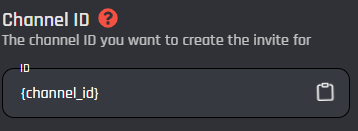
This field accepts any plain channel ID with no extra symbols or spaces. The ID can be in the form of a [variable ](/custom-commands-and-events/variables.md)as well.
{% endtab %}
{% endtabs %}
## Invite Duration
This field is modifies how long the server invite will be valid (in seconds) for until expiration. The field only accepts integers, 0 being the duration is infinite. [Variables](/custom-commands-and-events/variables.md) can be used.
## Max Uses
Similar to the duration field, this field is the number of uses the invite can have until it is unusable. Likewise, it only accepts integers and [variables](/custom-commands-and-events/variables.md). Having it set to 0 will make the amount of uses infinite.
## Temporary
This dropdown menu represents a temporary kick system. If the user doesn't receive a role in 24 hours upon them joining off the invite created, they will be kicked. You can enable to disable this by making them temporary or not.
## Unique Invite
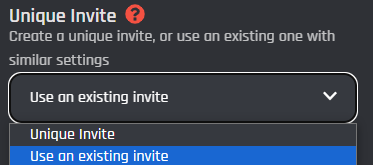
This dropdown menu represents whether the invite is unique or is based off another invite. If the "user a existing invite" is selected, then the bot will create the invite with similar settings based off other invites in that server.
## Optional Server ID
This field is where you input a plain server ID to for the server invite to target the channel in. This field can be left blank to target the server of wherever the command / event was triggered in or where a user clicked a [button](/custom-commands-and-events/actions/legacy-reply-actions/send-a-message-with-attached-buttons/buttons.md) / [menu option](/custom-commands-and-events/actions/legacy-reply-actions/send-a-message-with-a-select-menu/menu-option.md). A [variable](/custom-commands-and-events/variables.md) containing a plain server ID that has no spaces or extra symbols can be used as well.
## Invite Variable
This field is however the variable that returns the server invite URL will be returned. This is similar to the [set a unique variable](/custom-commands-and-events/actions/other-actions/set-a-unique-variable.md) block, so you can name your variable whatever you wish inside {}. You can then use this invite variable in later actions.
## Enable Success/Error Handles
Enable Success / Error Handles to detect success and errors inside of the action block. This allows you to run different actions if something goes wrong with your action. Inside of the handle, there are 2 different paths which are used to detect the outcome of the action. The green path on the bottom left side of the block indicates success, while the red path on the bottom right side of the block indicates error. You may attach action blocks to each side of the handle to get the outcome of your action block.
The Success/Error Handles feature includes 3 different error variables you can use to get information on why the action block encountered an error. Check them out [here](/custom-commands-and-events/variables.md#error-variables).