> For the complete documentation index, see [llms.txt](https://documentation.botghost.com/llms.txt). Markdown versions of documentation pages are available by appending `.md` to page URLs; this page is available as [Markdown](https://documentation.botghost.com/custom-commands-and-events/actions/role-actions/edit-role.md).
# Edit Role
The Edit a role block will edit a role in your server. Editing can modify different aspects of an already existing role. Some fields can be left blank for no changes to occur.
## Role
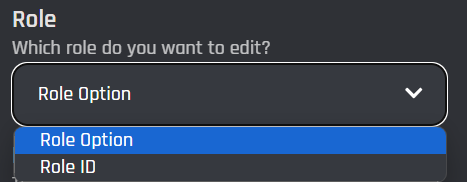
This selection will specify the method of targeting the role that will be edited.
{% tabs %}
{% tab title="Role Option" %}
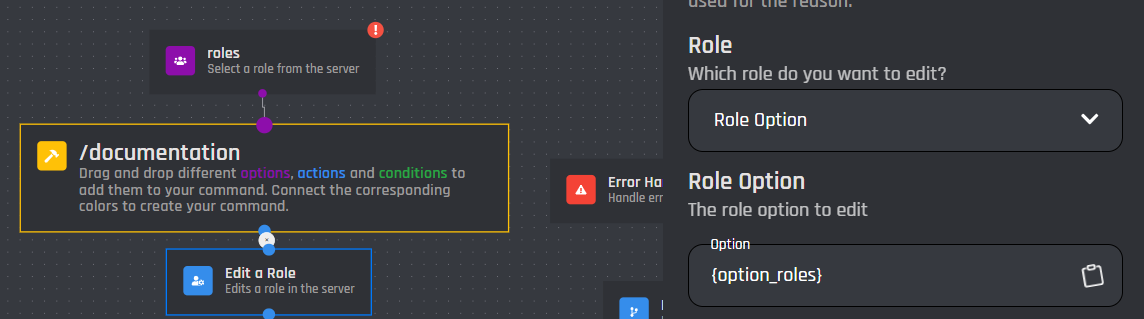
This selection will target a [role option](/custom-commands-and-events/options/role-option.md) which will contain the role for the bot to delete when the command is executed. Only [role options](/custom-commands-and-events/options/role-option.md) in this field may work, IDs and [variables](/custom-commands-and-events/variables.md) can be used in [#role-id](#role-id "mention").
### Role Option
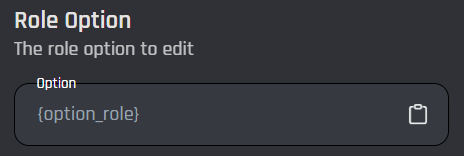
You must have a [role option](/custom-commands-and-events/options/role-option.md) added in your command for this to work.
{% endtab %}
{% tab title="Role ID" %}
This selection will target a specific role ID / [variable](/custom-commands-and-events/variables.md) to delete.
### Role ID
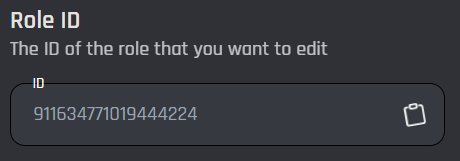
This field accepts a plain role ID or [variable](/custom-commands-and-events/variables.md) that returns a plain role ID. This role ID can't have any spaces or extra symbols, make sure it is a plain role ID.
{% endtab %}
{% endtabs %}
## Name
The new name for the role the bot is editing. Leave this blank if you do not wish to change the name.
## Reason
This field is an optional reason for editing the role. This reason will be shown in the audit log of the server that the command / event was executed in.
## Position
This field is optional and changes the position of the edited role in your server. Leave this blank for default positioning. Positions are all arranged from bottom (default) to top. This field only accepts integers and [variables ](/custom-commands-and-events/variables.md)can be used.
## Color
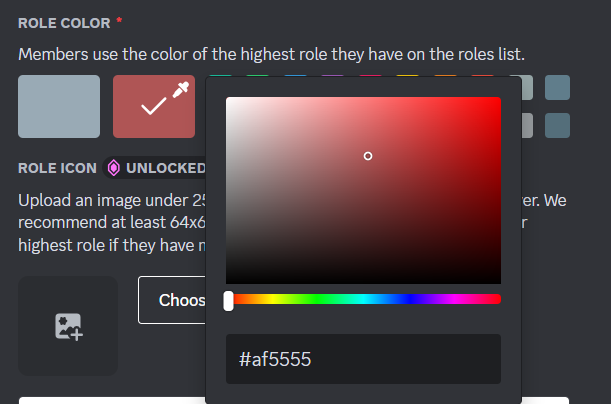
This field is optional and changes the color of the role the bot is editing. **This field only accepts a HEX format.** Server members use the color of the highest position role they have. [Variables ](/custom-commands-and-events/variables.md)can be used as well. Leaving this field blank will make it a default grey color.
Hex format example: #af5555
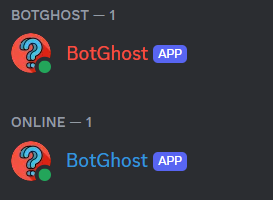
## Display role members separately from online members
This switch controls whether the role is hoisted or not.
Blue role is not hoisted
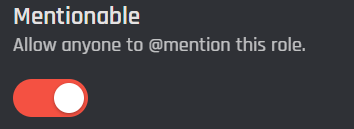
## Mentionable
This switch will allow anyone to mention / @ this role, even if they don't possess the mention @everyone / @here permission.
## Permissions
Click the "+" to attach certain permissions to the role the bot is editing. Leave this field blank to have no permissions. Visit this [link](https://discord.com/developers/docs/topics/permissions#permissions-bitwise-permission-flags) to learn more about permissions.
## Enable Success/Error Handles
Enable Success / Error Handles to detect success and errors inside of the action block. This allows you to run different actions if something goes wrong with your action. Inside of the handle, there are 2 different paths which are used to detect the outcome of the action. The green path on the bottom left side of the block indicates success, while the red path on the bottom right side of the block indicates error. You may attach action blocks to each side of the handle to get the outcome of your action block.
The Success/Error Handles feature includes 3 different error variables you can use to get information on why the action block encountered an error. Check them out [here](/custom-commands-and-events/variables.md#error-variables).