> For the complete documentation index, see [llms.txt](https://documentation.botghost.com/llms.txt). Markdown versions of documentation pages are available by appending `.md` to page URLs; this page is available as [Markdown](https://documentation.botghost.com/custom-commands-and-events/actions/role-actions/delete-a-role.md).
# Delete a role
Delete a Role in the server. You can specify specific roles from your server or an ID / [Variable](/custom-commands-and-events/variables.md).
{% hint style="warning" %}
The bot must have Manage Roles permission in order to delete roles.
{% endhint %}
## Role Type
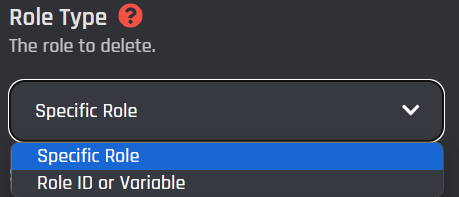
This selection will specify the targeted role to delete.
{% tabs %}
{% tab title="Specific Role " %}
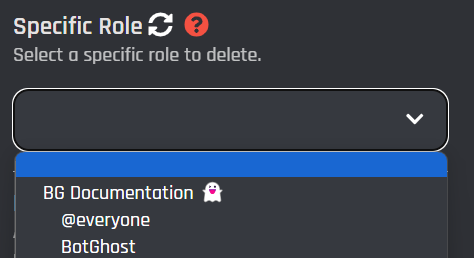
This selection will allow you to select a specific role from your server to delete. It will show a dropdown menu to allow the selection.
### Specific Role
This is a dropdown menu allowing you to select a role from any server the bot is in. Remember that if the role you're trying to select isn't there, it most likely means it was very recently added, simply click the refresh icon next to the "?" in the image below to find your role.
{% endtab %}
{% tab title="Role ID or Variable" %}
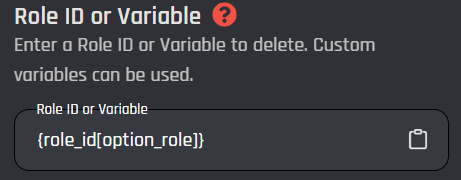
This selection can target specific roles by their ID to delete. Selecting this type will prompt a new field to appear to input a ID or [Variable](/custom-commands-and-events/variables.md).
### Role ID or Variable
This field accepts a plain role ID or [variable](/custom-commands-and-events/variables.md) that returns a plain role ID. This role ID can't have any spaces or extra symbols, make sure it is a plain role ID.
{% endtab %}
{% endtabs %}
## Enable Success/Error Handles
Enable Success / Error Handles to detect success and errors inside of the action block. This allows you to run different actions if something goes wrong with your action. Inside of the handle, there are 2 different paths which are used to detect the outcome of the action. The green path on the bottom left side of the block indicates success, while the red path on the bottom right side of the block indicates error. You may attach action blocks to each side of the handle to get the outcome of your action block.
The Success/Error Handles feature includes 3 different error variables you can use to get information on why the action block encountered an error. Check them out [here](/custom-commands-and-events/variables.md#error-variables).