> For the complete documentation index, see [llms.txt](https://documentation.botghost.com/llms.txt). Markdown versions of documentation pages are available by appending `.md` to page URLs; this page is available as [Markdown](https://documentation.botghost.com/custom-commands-and-events/actions/music-actions/apply-audio-filter.md).
# Apply Audio Filter
{% hint style="warning" %}
This action requires a [Premium Subscription](/premium/premium-and-priority-hosting-plans.md#premium-plans) to function.
{% endhint %}
The Apply Audio Filter action applies an audio filter to the current music player.
## Server
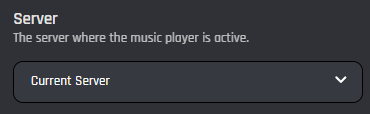
This setting selects which server the action applies to. You have two options to choose from:
{% tabs %}
{% tab title="Current Server" %}
When you select the 'Current Server' option, the audio will be applied to the player in the current server.
{% endtab %}
{% tab title="Server ID" %}
When you select the Server ID option, the audio filter will be applied to the provided server ID's player.
### Server ID
In this field, you can enter the ID of the server where you want the audio filter to be applied to. Variables can be used in this field.
{% endtab %}
{% endtabs %}
## Filter Type
In this field, you can select the type of audio filter to apply to the specified player.
{% tabs %}
{% tab title="Filters" %}
When you select one of the default filters, the specified filter will be applied to the player. The available filters are:
| Filter Type | Filter Description |
| ------------ | -------------------------------------------- |
| Bass Boost | Enhances low frequencies for deeper bass |
| Nightcore | Faster and higher pitched audio |
| Vaporwave | Slower and lower pitched audio (chill vibes) |
| 8D Audio | Creates spatial/surround sound effect |
| Tremolo | Volume oscillation (wobble effect) |
| Vibrato | Pitch oscillation (warble effect) |
| Karaoke | Attempts to remove vocals from track |
| Treble Boost | Enhances high frequencies |
| Chipmunk | Very high pitched (Alvin and the Chipmunks) |
| Daycore | Opposite of nightcore (slower & lower) |
### Intensity
In this field, you can choose the intensity level of the filter. This supports low, medium or high.
{% endtab %}
{% tab title="Custom Pitch" %}
When you select Custom Pitch, you are able to specify a custom pitch (how high or low the song sounds) for the music player.
### Pitch Value
This field allows you to specify a custom pitch for the music player. A value of 1.0 is normal, a higher value would equal a higher pitch, and a lower value would equal a lower pitch. Variables can be used in this field.
{% endtab %}
{% tab title="Custom Speed" %}
When you select Custom Speed, you are able to specify a custom speed for the music player.
### Pitch Value
This field allows you to specify a custom speed for the music player. A value of 1.0 is normal, a higher value play faster, and a lower value would play slower. Variables can be used in this field.
{% endtab %}
{% tab title="Custom Equalizer" %}
Custom Equalizer is an advanced feature that allows you to select a custom band and gain for your music player.
### Custom Equalizer Bands
In this field, you can enter a JSON array of band objects. There are 15 bands (0-14), and each band can be adjusted with the gain value. Valid values for gain range from -0.25 to 1.0, where -0.25 means the given band is completely muted, and 0.25 means the band is doubled. This can change the volume of the output.
{% hint style="info" %}
You can see more information on the custom equalizer feature [on LavaLink's docs](https://lavalink.dev/api/rest#equalizer).
{% endhint %}
{% endtab %}
{% tab title="Reset/Clear All" %}
Reset / Clear All will clear all filters from the specified player.
{% endtab %}
{% endtabs %}