> For the complete documentation index, see [llms.txt](https://documentation.botghost.com/llms.txt). Markdown versions of documentation pages are available by appending `.md` to page URLs; this page is available as [Markdown](https://documentation.botghost.com/custom-commands-and-events/actions/music-actions/add-to-queue.md).
# Add to Queue
{% hint style="warning" %}
This action requires a [Premium Subscription](/premium/premium-and-priority-hosting-plans.md#premium-plans) to function.
{% endhint %}
The Add to Queue action lets you search for tracks or paste a URL and add them to the music player’s queue.
## Server
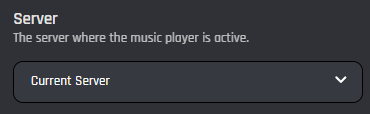
This setting allows you to target a server. You have two options to select from:
{% tabs %}
{% tab title="Current Server" %}
When you select the 'Current Server' option, the track will be added to the queue of the current server.
{% endtab %}
{% tab title="Server ID" %}
When you select the 'Server ID' option, the track will be added to the queue of the provided server ID.
### Server ID
In this field you can enter the ID of the server where you want to add the track to the queue. Variables can be used in this field.
{% endtab %}
{% endtabs %}
## **Search Query or URL**
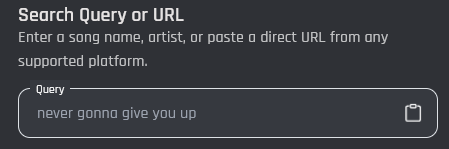
Enter a song name, artist, or paste a direct URL from any supported platform. The search supports normal text queries as well as links from Spotify, Apple Music, and SoundCloud, automatically detecting and loading the correct track based on what you enter.
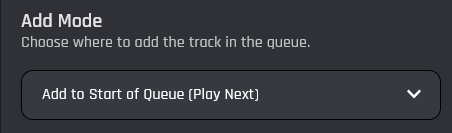
## Remove Mode
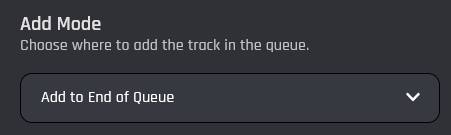
This setting lets you choose how tracks should be removed from the music queue. You have three options to select from:
{% tabs %}
{% tab title="Add to End of Queue" %}
Adds a track to the end of the queue.
{% endtab %}
{% tab title="Add to start of Queue" %}
Adds a track to the start of the queue so it plays next.
{% endtab %}
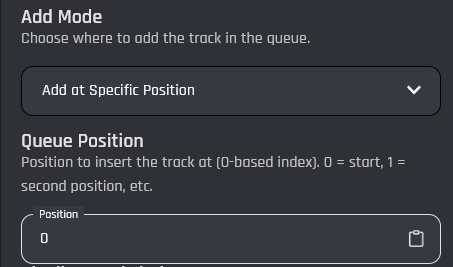
{% tab title="Add at a Specific position" %}
Adds a track to the queue at a specific position.
### Queue Position
Use the Queue Position field to specify which track should be removed. Position values start at 0, where 0 is the first track and 1 is the second track.
{% endtab %}
{% endtabs %}
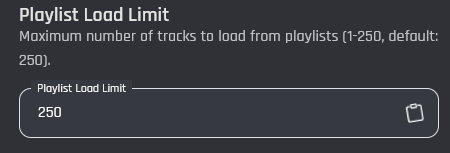
## Playlist Load Limit
Maximum number of tracks to load from playlists. Accepts values from 1 to 250.