> For the complete documentation index, see [llms.txt](https://documentation.botghost.com/llms.txt). Markdown versions of documentation pages are available by appending `.md` to page URLs; this page is available as [Markdown](https://documentation.botghost.com/custom-commands-and-events/actions/message-actions/send-or-edit-a-message/interactive/select-menu.md).
# Select Menu
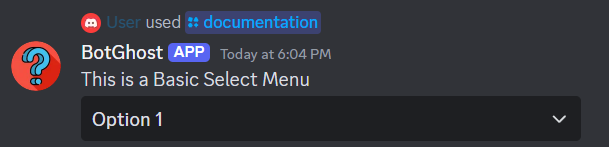
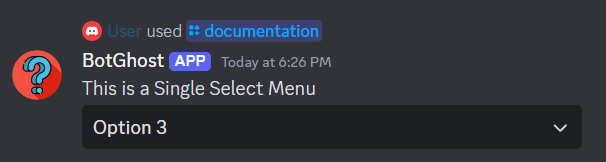
Inside of the Send or Edit a Message block, you are able to add select menus to your message.
## Accessing Select Options
In order to access the options that were selected in your message, there are a few variables that you can utilize.
| Variable | Information |
| --------------------------- | ---------------------------------------------------------------------------------------------------------------------------------------------------------------------------------------------------- |
| `{selected_option}` | Returns the option that was selected, only appears when you have "Single Select" enabled. Example Return: `17392374` |
| `{selected_options}` | Returns the options that were selected in an array format, only appears when you have "Multi Select" enabled. Example Return: `123,852,187` |
| `{selected_options.length}` | Returns the length of options that were selected, only appears when you have "Multi Select" enabled. |
| Custom variable | The custom variable you setup in the [#custom-variable-name](#custom-variable-name "mention") section. It works just like `{selected_option}` (or `{selected_options}` when multi select is enabled. |
## Placeholder
The placeholder text that will appear on your menu without any options being selected. [Variables](/custom-commands-and-events/variables.md) are supported here.
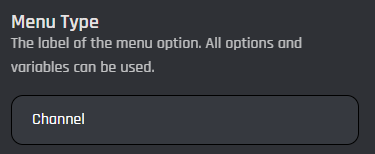
## Menu Type
The type of select menu that will appear on your message. All Discord's select menus are available.
{% tabs %}
{% tab title="Basic (Text)" %}
Your menu will have simple text options which you can customize the label, description, emoji, and more.
Each basic select menu allows you to add up to 25 options. Here you can add and customize options of your select menu. Variables are supported in all fields.
## Label
The text that will be displayed on the option in your menu.
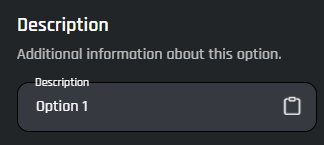
## Description
Additional information about your option that will appear on it's description once a user has opened the menu.
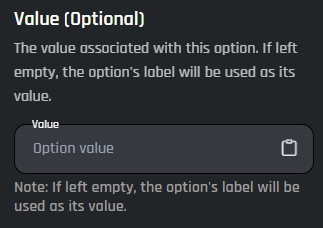
## Value
The value that is attached to this option, which will be used while accessing the option(s) that were selected on your option with the menu's variable. This is an optional setting, if no value is set then your option's label will be used as it's value.
## Emoji ID
The emoji that will appear on your menu's specific option, you must provide a valid emoji id or a unicode formatted emoji for default discord emojis. This is an optional setting.
## Hide Option
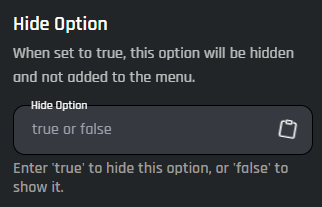
The option to make this specific option of your menu hidden or not, meaning it will not appear on your menu. Input `true` in order to hide the option or input `false` to show this option. If no value is set here, it will appear by default.
{% endtab %}
{% tab title="Role" %}
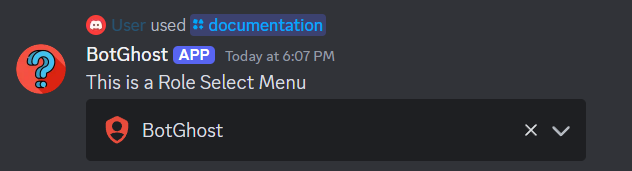
Your menu will have roles as selectable options, you may setup roles that are selected by default and more.
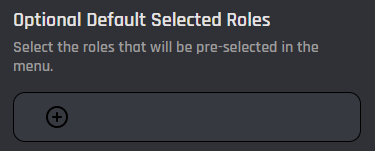
## Default Selected Roles
Here you may select roles that you would like to appear by default on your menu.
## Default Selected Additional Roles
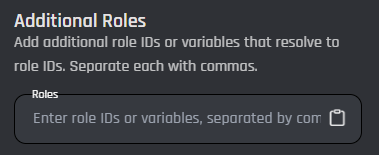
Here you may input role IDs or variables that you would like to appear by default on your menu. Separate each role ID or variable by commas in order to format successfully.
{% endtab %}
{% tab title="Channel" %}
Your menu will have channels as selected options, you may setup channels that are selected by default and more.
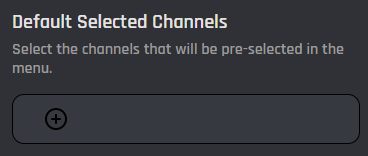
## Default Selected Channels
Here you may select the channels that will appear by default on your menu.
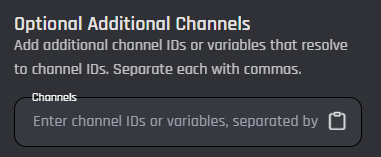
## Default Selected Additional Channels
Here you may input channel IDs or variables that will appear by default on your menu. Separate each value with commas in order to format successfully.
## Default Channel Types
Here you may select the channel types that will appear on your menu only.
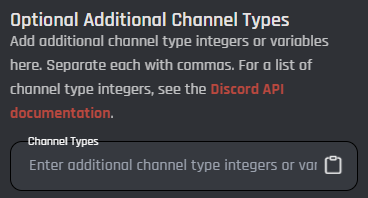
## Default Additional Channel Types
Here you may input channel type integers or variables that will appear on your menu only. For a list of channel type integers, see the [Discord API documentation](https://discord.com/developers/docs/resources/channel#channel-object-channel-types).
{% endtab %}
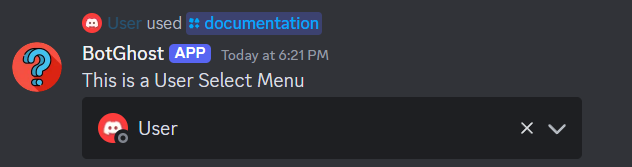
{% tab title="User" %}
Your menu will have users in your server as selected options, you may setup server members that are selected by default and more.
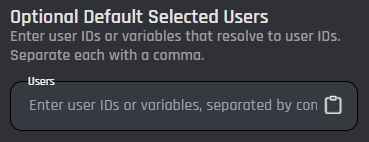
## Default Selected Users
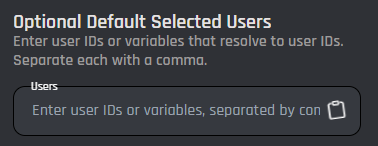
Here you may input user IDs or variables that will appear as selected users on your menu by default.
{% endtab %}
{% tab title="Mentionable" %}
Your menu will have roles and users in your server as selected options, you may setup server roles and members that are selected by default and more.
## Default Selected Roles
Here you may select roles that you would like to appear by default on your menu.
## Default Selected Additional Roles
Here you may input role IDs or variables that you would like to appear by default on your menu. Separate each role ID or variable by commas in order to format successfully.
## Default Selected Users
Here you may input user IDs or variables that will appear as selected users on your menu by default.
{% endtab %}
{% endtabs %}
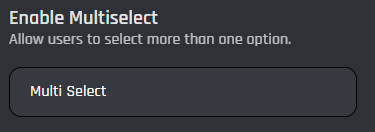
## Enable Multiselect
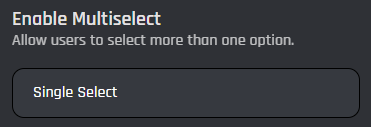
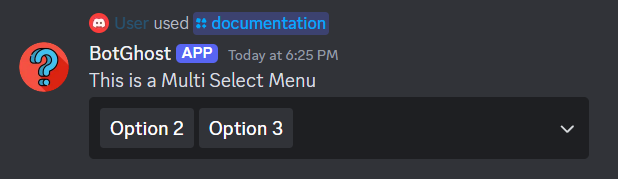
This option allows users to select more than 1 option on your menu.
{% tabs %}
{% tab title="Single Select" %}
If this option is selected, users may only select 1 option at a time on your menu.
{% endtab %}
{% tab title="Multi Select" %}
If this option is selected, users may select as many options as you allow them to.
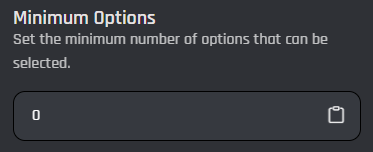
## Minimum Options
The minimum amount of options users can select at a time. Input must be greater than or equal to 0.
## Maximum Options
The maximum amount of options users can select at a time. The maximum value for this setting is 25.
{% endtab %}
{% endtabs %}
## Custom Variable Name
Here you can assign a custom variable name to access the chosen option(s) of your menu. If you don’t specify one, the default variable `{selected_option}` will be used. This is an optional setting.
## Disable Select Menu by Default
This field allows you to decide whether your select menu should be disabled by default.. Set the value to `true` if you'd like to disable your menu by default. This is an optional setting and defaults to `false` when left blank.
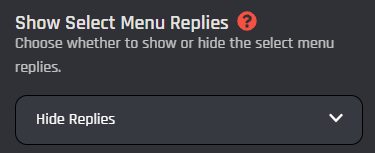
## Show Select Menu Replies
The option to show or hide replies to the menu of your message. If you select this to "Hide Replies", only the user who used the menu can see replies to the menu. If selected to "Show Replies", replies to your menu will be able to be seen by everyone.
## Enable Component Ordering
Enabled this option to order select menus in a specific row.
### Row
The row that the menu will be placed on, insert 1 to have the menu placed on the first row of components. A message can have up to 5 rows of either a select menu or 1 to 5 buttons, which is also known as lines of components.
### Position Weight
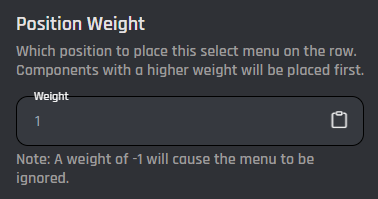
The position that the menu will be ordered in on the row it was placed inside of. Menus that have a higher weight, meaning a higher number, will be placed first before other menus with lower weights. If you insert `-1`, this menu will not be added to your message.
## Remove Menu
{% hint style="info" %}
This setting is only available in the [Edit a Button or Select Menu](/custom-commands-and-events/actions/message-actions/edit-a-button-or-select-menu.md) action block.
{% endhint %}
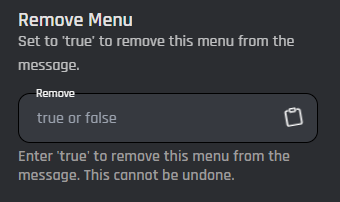
The Remove Menu setting allows you to remove the select menu from the message when the setting is set to `true`. Once removed, it can't be brought back.