> For the complete documentation index, see [llms.txt](https://documentation.botghost.com/llms.txt). Markdown versions of documentation pages are available by appending `.md` to page URLs; this page is available as [Markdown](https://documentation.botghost.com/custom-commands-and-events/actions/message-actions/send-or-edit-a-message/interactive/button.md).
# Button
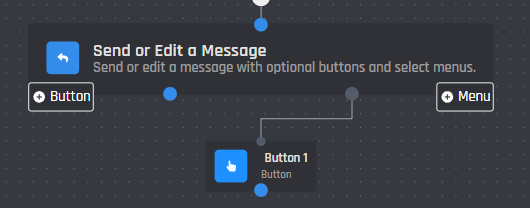
Inside of the Send or Edit a Message block, you can add buttons onto your message.
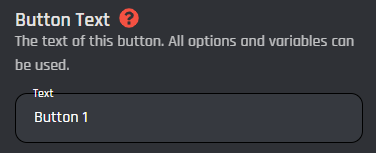
## Button Text
Assign some text that will show in the button.
## Emoji ID
The emoji that will appear on the button on your message, you must provide a valid emoji id or a unicode formatted emoji for default discord emojis. This is an optional setting.
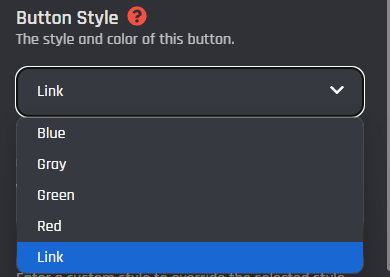
## Button Style
The style of your button, you can choose between 5 types of styles. The Link button allows you to redirect users to a custom link when the button is clicked.
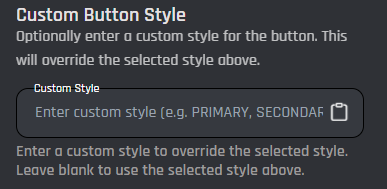
## Custom Button Style
You can also use variables to determine the color of your button. Set the value to the color "Name" in the table below. Leave empty to follow the button style selected in the [#button-style](#button-style "mention") setting.
{% tabs %}
{% tab title="Action Button" %}
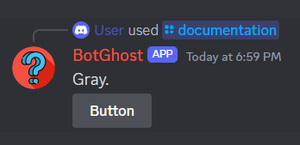
Below you may find some information on clickable buttons and their settings. The table below shows a list of all available button styles and their name, which can be used in the [#custom-button-style](#custom-button-style "mention") setting.
| Color | Name | Example |
| ----- | ----------- | --------------------------------------------------------------------------------------------------------------------------------------------------------------------------------------------------------------------------------------------------------- |
| Blue | `PRIMARY` |  |
| Grey | `SECONDARY` | |
| Red | `DANGER` | |
| Green | `SUCCESS` | |
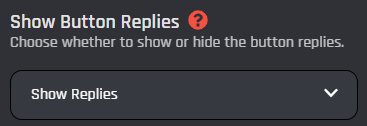
## Show Button Replies
The option to decide if interaction replies to the button are public as in visible to all users, or hidden and only can be seen by the user who caused the reply.
{% endtab %}
{% tab title="Link Button" %}
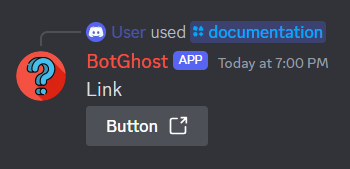
Link buttons redirect to a custom link when clicked. They can only be grey.
## Button URL
The URL that users will be redirected to if they click on the button, this only appears if you have enabled your button to be link type. Variables work here, they must provide a valid URL.
{% endtab %}
{% endtabs %}
## **Disable Button by Default**
This option allows you to decide if your button is disabled by default on the message being sent, set the text to `true` if you would like it to be disabled. This is an optional setting and defaults to `false`.
## Enable Component Ordering
Enable this option to order components by assigning each button a row and a weight.
### Row
The row that the button will be placed on, insert 1 to have the button placed on the first row of buttons. A message can have up to 5 rows of either a select menu or 1 to 5 buttons, which is also known as lines of components.
### Position Weight
The position that the button will be ordered in on the row it was placed inside of. Buttons that have a higher weight, meaning a higher number, will be placed first, before other buttons with lower weights. If you insert `-1`, this button will not be added to your message.
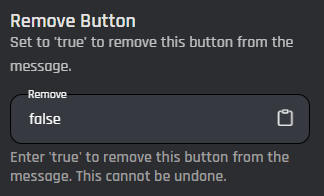
## Remove Button
{% hint style="info" %}
This setting is only available in the [Edit a Button or Select Menu](/custom-commands-and-events/actions/message-actions/edit-a-button-or-select-menu.md) action block.
{% endhint %}
The Remove Button setting allows you to remove the button from the message when the setting is set to `true`. Once removed, it can't be brought back.

 |
| Red | `DANGER` |
|
| Red | `DANGER` | 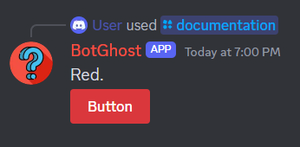 |
| Green | `SUCCESS` |
|
| Green | `SUCCESS` | 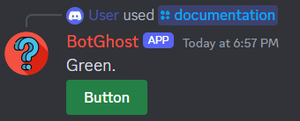 |
## Show Button Replies
The option to decide if interaction replies to the button are public as in visible to all users, or hidden and only can be seen by the user who caused the reply.
|
## Show Button Replies
The option to decide if interaction replies to the button are public as in visible to all users, or hidden and only can be seen by the user who caused the reply.