> For the complete documentation index, see [llms.txt](https://documentation.botghost.com/llms.txt). Markdown versions of documentation pages are available by appending `.md` to page URLs; this page is available as [Markdown](https://documentation.botghost.com/custom-commands-and-events/actions/message-actions/send-or-edit-a-message/content.md).
# Content
Content components define what appears visually inside your message - including text, media, and files.\
They represent the main body of your message and are used to display information to users.
### Component Overview
| Component | Description |
| ------------------------------- | -------------------------------- |
| [Text Display](#text-display) | Markdown text content |
| [Media Gallery](#media-gallery) | Multiple images in a grid layout |
| [File](#file) | Display for attached files |
***
## Text Display
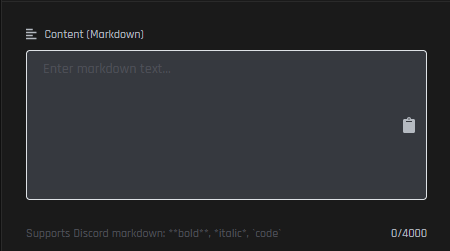
Text Displays are used to show formatted text within a message. They support Discord Markdown, mentions, emojis, and variables.
### Content
Enter the text to display. Supports Markdown formatting and variables.
### Character Limit
The character limit for a Text Display is 4000 characters.
***
## Media Gallery
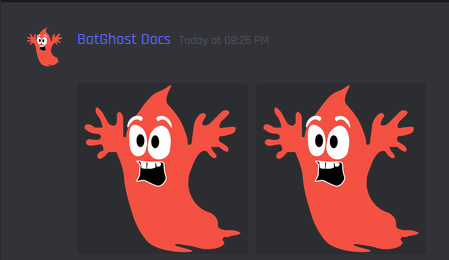
The Media Gallery component lets you display **multiple images** in a grid layout, ideal for showing collections, previews, or thumbnails.
### **Images**
Add one or more image URLs or variables returning image links.
### Image Description
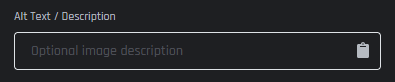
Optional text shown as the image description or alternative text. Supports variables.
### Spoiler
If this value is set to `true`, the Images will appear as a spoiler (blurred until revealed). Defaults to false, Variables can be used here.
### Image Limit
The Image Limit for a Media Gallery is 10 images.
***
## File
The File component lets you attach files to a message, ideal for sharing documents, archives, or other downloadable content.
### File
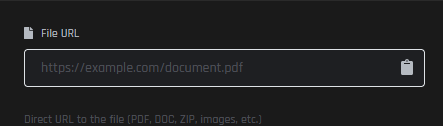
Provide a direct file URL or upload a file. Variables that return a file URL can also be used.
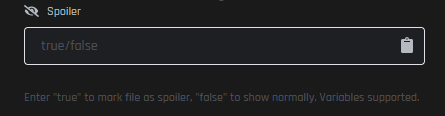
### Spoiler
If this value is set to `true`, the File will appear as a spoiler (blurred until revealed). Defaults to false, Variables can be used here.
### Storage
Uploaded files are securely stored on **BotGhost’s S3 servers**.
### File Information
Discord automatically detects and displays the file type.\
The file name and size are extracted automatically.