> For the complete documentation index, see [llms.txt](https://documentation.botghost.com/llms.txt). Markdown versions of documentation pages are available by appending `.md` to page URLs; this page is available as [Markdown](https://documentation.botghost.com/custom-commands-and-events/actions/message-actions/edit-a-button-or-select-menu.md).
# Edit a Button or Select Menu
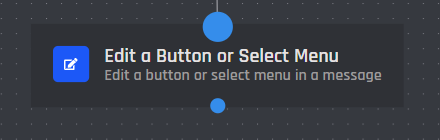
The Edit a Button or Select Menu block allows you to modify a button or select menu sent in your command or event after it has originally been sent.
## Target Message
Inside of this option, you may select the message block that you would like to edit the components of from the dropdown. To easily find the action that you would like to edit, it's recommended to label the original block with the **Block Label** option.
## Available Components
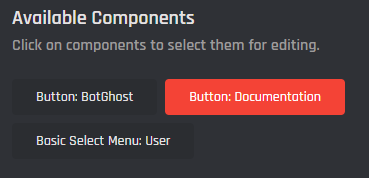
In this section, all components that you are allowed to edit will appear here. To select the component to edit, simply click on the component's option as seen in the image below. Once you select a component, the option will be highlighted in red. To unselect a component, simply click it again. Options colored in gray will not get edited.
## Selected Components
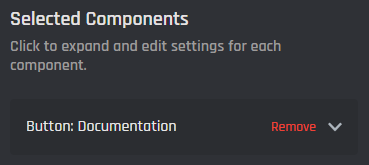
In this section, you may adjust the settings for each component that you would like to edit. To select a certain component to edit, simply click on the dropdown arrow to view all the settings of that edited version of the component. In order to remove an edited component, simply click the "Remove" text highlighted in red. Refer to the Send or Edit a Message's [Button](/custom-commands-and-events/actions/message-actions/send-or-edit-a-message/interactive/button.md) and [Select Menu](/custom-commands-and-events/actions/message-actions/send-or-edit-a-message/interactive/select-menu.md) documentation pages to learn about all the settings that you can modify.
{% hint style="success" %}
Fields you leave empty will remain unchanged when editing the component.
{% endhint %}