> For the complete documentation index, see [llms.txt](https://documentation.botghost.com/llms.txt). Markdown versions of documentation pages are available by appending `.md` to page URLs; this page is available as [Markdown](https://documentation.botghost.com/custom-commands-and-events/actions/message-actions/delete-a-message.md).
# Delete a Message
When triggered, the Delete a Message action deletes any message in a Discord server. This message can either be a message associated with the command or event it is used in, or set by its channel and message ID. All variables and options can be used in the channel and message ID fields.
## Delete by Message ID or another Action
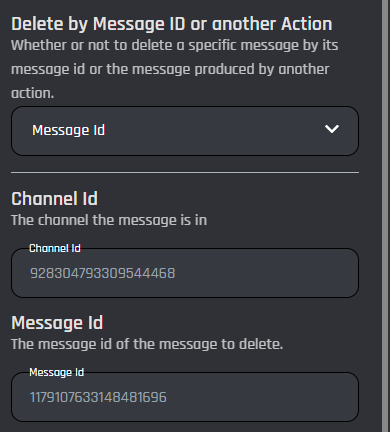
In the Delete a Message action, you have the choice for the message to be from another action, or set by its message ID.
{% tabs %}
{% tab title="Message ID" %}
### Channel ID
Here you can set the ID of the channel the message you're deleting is in. You can do this by pasting an ID directly from Discord (learn how [here](https://support.discord.com/hc/en-us/articles/206346498-Where-can-I-find-my-User-Server-Message-ID)) or using a variable that returns a channel ID. These can be easily added through the variable selector by clicking the **Clipboard** button.
### Message ID
Here you can set the ID of message you're deleting. You can do this by pasting an ID directly from Discord (learn how [here](https://support.discord.com/hc/en-us/articles/206346498-Where-can-I-find-my-User-Server-Message-ID)) or using a variable that returns a message ID. These can be easily added through the variable selector by clicking the **Clipboard** button.
{% endtab %}
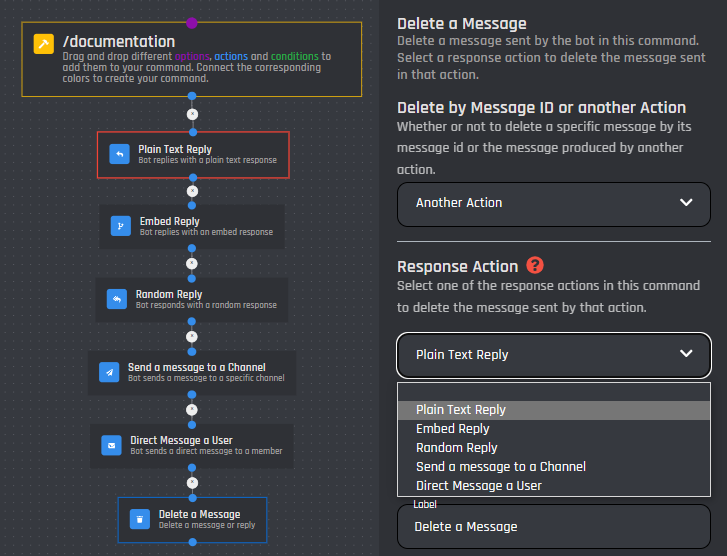
{% tab title="Another Action" %}
### Response Type
In this section, you can manage which message the bot will delete. You can select from a dropdown that will display the bot's messages, as well as any related to the event, if applicable. The selected message will be highlighted in red.
{% endtab %}
{% endtabs %}
***
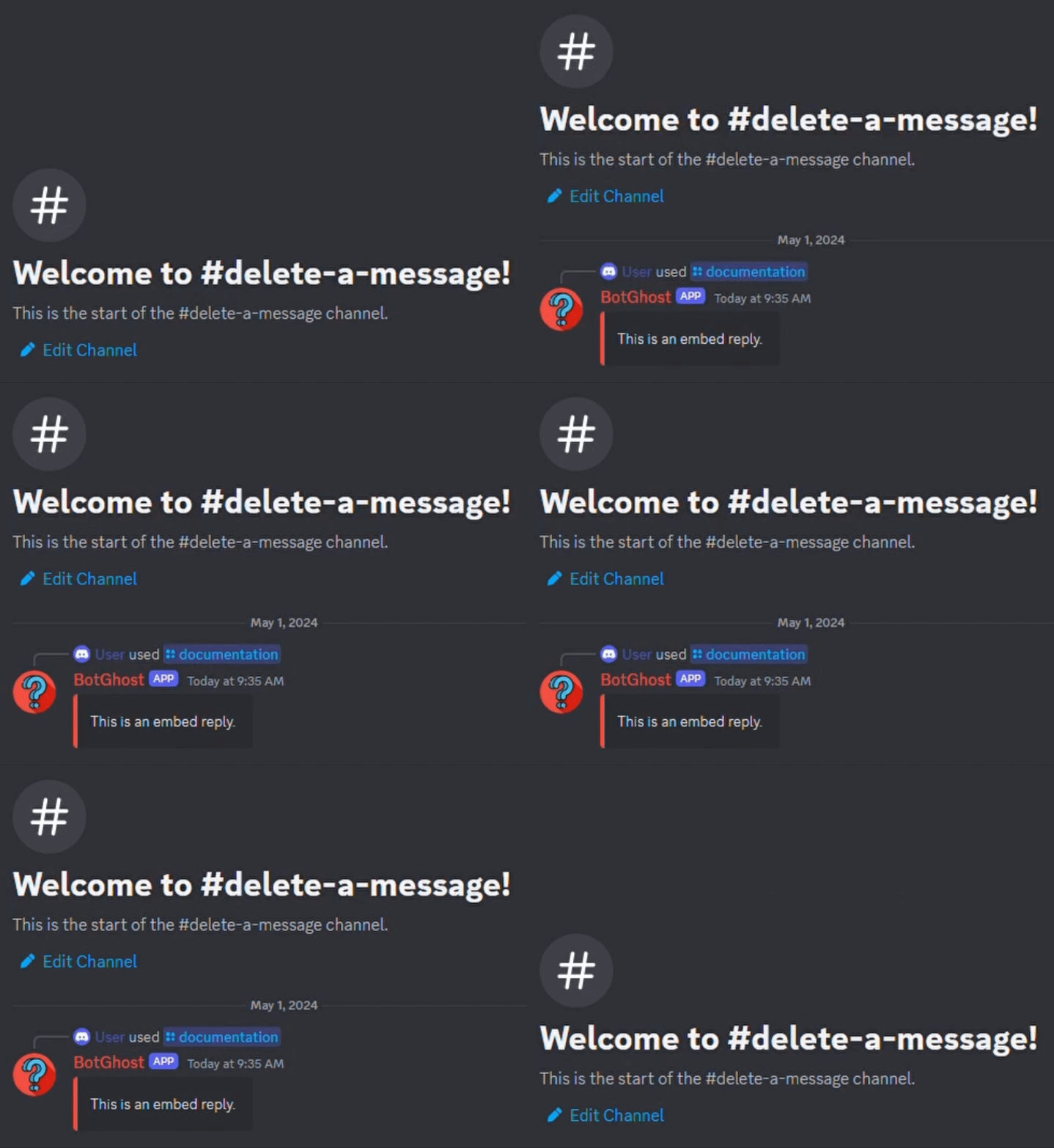
Below is an example of a simple command that sends an [Embed Reply](/custom-commands-and-events/actions/legacy-reply-actions/embed-reply.md), uses [Wait before running another action](/custom-commands-and-events/actions/other-actions/wait-before-running-another-action.md) to wait 1 second, and deletes the message.