> For the complete documentation index, see [llms.txt](https://documentation.botghost.com/llms.txt). Markdown versions of documentation pages are available by appending `.md` to page URLs; this page is available as [Markdown](https://documentation.botghost.com/custom-commands-and-events/actions/legacy-reply-actions/send-a-message-with-attached-buttons/buttons.md).
# Buttons
{% hint style="danger" %}
While the Send a Message with attached buttons action block is still available for use in all commands and events, it is considered old and has been replaced by the [Send or Edit a Message](/custom-commands-and-events/actions/message-actions/send-or-edit-a-message.md) action block. We advise you to use the [Send or Edit a Message](/custom-commands-and-events/actions/message-actions/send-or-edit-a-message.md) block instead, which offers more functionalities and possibilities for your message.
{% endhint %}
Buttons are interactive components that render in messages. They can be clicked by users, and send an interaction to your bot when clicked. All corresponding blocks under the button will execute.
## Button Text
The following field can be used to set the text that the button should display:
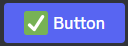
Example of what they would see:
## Emoji ID
You can specify a custom emoji id or default emoji to add to the emoji along with the normal button text. To do this you need to use the backwards slash then input your emoji. It will return the emoji id if it's a custom or if it's default just copy the emoji and paste it into the field.
## Button Style
The button style allows you to select the color of the button, or mark it as a link button.
### Action Button
Color
Example
Green
Blue
Gray
Red
### Link button
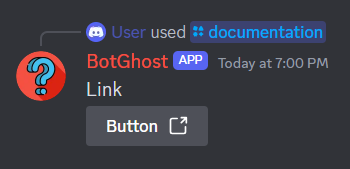
You can choose the color of the button along with a separate option of it being a link. Simply input a URL in the field that is shown. Link buttons are only gray and aren't able to be disabled or have a cooldown. Also if the link style is chosen then you can't connect any blocks to the link button.
## Disable button after use
Disabling a button means it cannot be used anymore when a certain action disables it.\
If the link style is not chosen, you will have an option of disabling the button. By default, buttons won't be disabled until you configure it to "Yes".
When you select "Yes", 3 new fields will appear.
### Clicks Required
This is the amount of clicks required to disable the button.
### Disabled Text
This is the text of the button that can be optionally changed after the button is disabled.
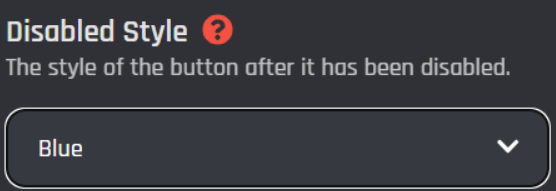
### Disabled Style
This is the color of the button after it has been disabled.
## Cooldown
Buttons have a cooldown field as well. A button cooldown is when a user clicks a button, they won't be able to click it again until a set amount of time passes.\
By default this field is disabled. To have a cooldown you select "Enabled".
Once Enabled, two new fields will appear:
### Cooldown Type
You can select whether the cooldown is global, meaning it affects everyone. So everyone would have to wait until the cooldown is over.\
You can also select User, so the cooldown is per user.
### Cooldown Duration
This is the duration in seconds that the cooldown will be active for.