> For the complete documentation index, see [llms.txt](https://documentation.botghost.com/llms.txt). Markdown versions of documentation pages are available by appending `.md` to page URLs; this page is available as [Markdown](https://documentation.botghost.com/custom-commands-and-events/actions/legacy-reply-actions/plain-text-reply.md).
# Plain Text Reply
{% hint style="danger" %}
While the Plain Text Reply action block is still available for use in all commands and events, it is considered old and has been replaced by the [Send or Edit a Message](/custom-commands-and-events/actions/message-actions/send-or-edit-a-message.md) action block. We advise you to use the [Send or Edit a Message](/custom-commands-and-events/actions/message-actions/send-or-edit-a-message.md) block instead, which offers more functionalities and possibilities for your message.
{% endhint %}
{% hint style="warning" %}
If you cannot see the Plain Text Reply action block in your actions list, disable the [Hide Legacy Reply Actions](/custom-commands-and-events/command-and-event-builder/advanced-options.md#general) setting.
{% endhint %}
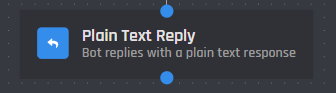
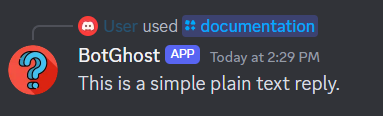
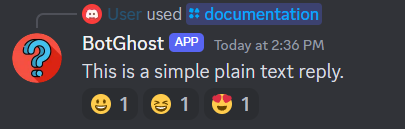
The Plain Text Reply action when triggered responds with a simple plain text message. This message can either reply to a command, be sent to the channel the command was used in, sent to a channel associated with an event, or edit a message sent by another action. All variables and options can be used in the content of the reply.
## Content
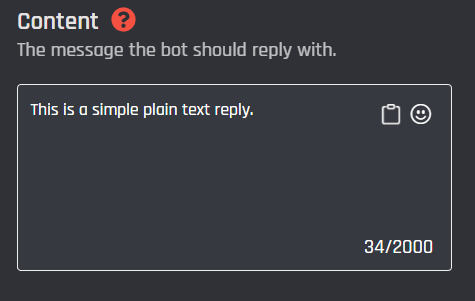
The content of the action is the actual message that the bot should reply with when the action is triggered. You can use any variable or option in the content of this reply. These can be easily added through the variable selector by clicking the **Clipboard** button.
## Response Type
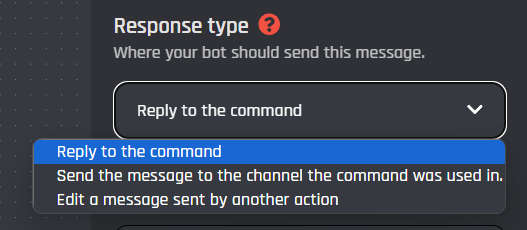
The Plain Text Reply action has three response types that change how the message of the action is sent. Below you can find detailed information about each response type and how it can be used.
{% tabs %}
{% tab title="Reply to the command" %}
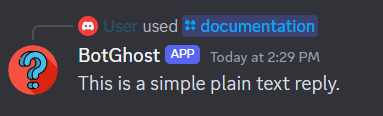
In commands, by selecting this response type your plain text message will be sent as a reply to the command. This will show who used the command and what command triggered the response. This reply can be hidden by selecting **Hide Replies** in the command settings, which can be accessed by clicking on the root node of the command (the block with the yellow border).
{% endtab %}
{% tab title="Send the message to the Channel" %}
This response type will send the message to either the channel the command was used in or the channel associated with an event in the event builder. By using this response type, the reply will look like a normal message sent by the bot, which means it can't be hidden.
{% endtab %}
{% tab title="Edit a message sent by another action" %}
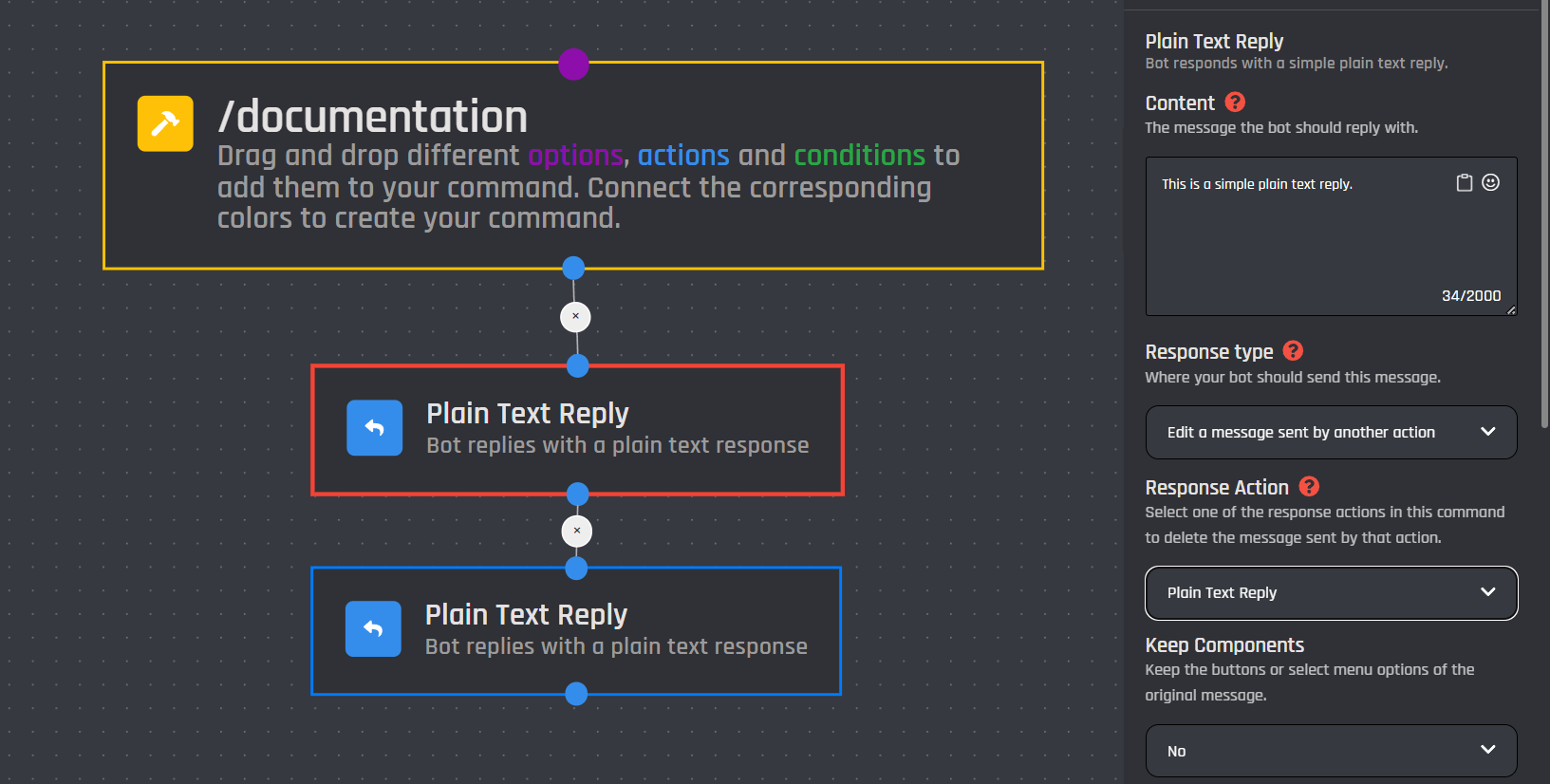
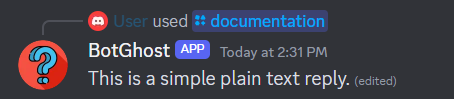
By selecting this response type you are able to edit the message sent by another action in the command or event tree.
To do so you must have another response action that your block can edit the reply of. Select another response action to be edited through the dropdown. A red outline will appear around the block that will be edited.
### Keep Components
If the original message contained one or more buttons / select menus, you can choose to keep components or remove them when editing the message. See the [Send a Message with attached buttons](/custom-commands-and-events/actions/legacy-reply-actions/send-a-message-with-attached-buttons.md) and [Send a message with a select menu](/custom-commands-and-events/actions/legacy-reply-actions/send-a-message-with-a-select-menu.md) for more information about interaction actions.
{% endtab %}
{% endtabs %}
## Reactions
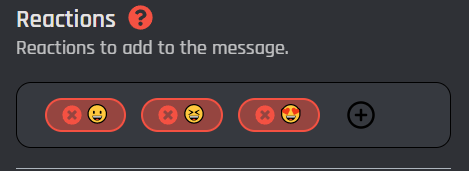
Reactions can also be added to the plain text reply. These can be added by clicking the reactions dropdown and selecting emojis.
These reactions will be automatically added to the plain text reply.
## Optional Variable
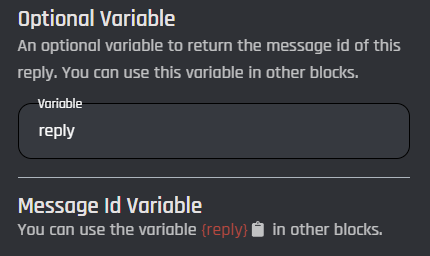
You can also create your own variable that can be used anywhere in the command to get the ID of the message sent by the action. This is useful when using [Send an API Request](/custom-commands-and-events/actions/api-actions/send-an-api-request.md) in your command / event and you need the ID of the message. Make sure that the name of the variable does not correspond to the name of a default variable or of an another action.
You can copy the variable by clicking the clipboard icon in the section right below the optional variable field.