> For the complete documentation index, see [llms.txt](https://documentation.botghost.com/llms.txt). Markdown versions of documentation pages are available by appending `.md` to page URLs; this page is available as [Markdown](https://documentation.botghost.com/custom-commands-and-events/actions/legacy-reply-actions/direct-message-a-user.md).
# Direct Message a User
{% hint style="danger" %}
While the Direct Message a User action block is still available for use in all commands and events, it is considered old and has been replaced by the [Send or Edit a Message](/custom-commands-and-events/actions/message-actions/send-or-edit-a-message.md) action block. We advise you to use the [Send or Edit a Message](/custom-commands-and-events/actions/message-actions/send-or-edit-a-message.md) block instead, which offers more functionalities and possibilities for your message.
{% endhint %}
{% hint style="warning" %}
If you cannot see the Direct Message a User action block in your actions list, disable the [Hide Legacy Reply Actions](/custom-commands-and-events/command-and-event-builder/advanced-options.md#general) setting.
{% endhint %}
When triggered, the Direct Message a User action responds with a DM to a user of your choosing. This message can either be sent to the user who triggered the block, a user option, or a user ID. All variables and options can be used in the content of the reply.
## User to DM
{% hint style="warning" %}
To receive a direct message, the user must have Direct Messages enabled.
{% endhint %}
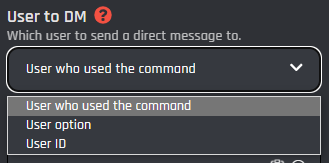
The Direct Message a User action has three options that change to whom the message of the action is sent. Below you can find detailed information about each option and how it can be used.
{% tabs %}
{% tab title="User who used the command" %}
By selecting this option your Direct Message will be sent to the user who used the most recent interaction; for example, the most recent button press, select menu choice, command run or the user who triggered the custom event.
{% endtab %}
{% tab title="User option" %}
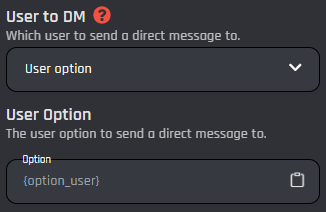
In commands, by selecting this option your Direct Message will be sent to a user selected in a user option.
### User Option
Here you can set the option variable for the [#user-option](#user-option "mention") (purple blocks) you are using. These can be easily added through the variable selector by clicking the **Clipboard** button.
{% endtab %}
{% tab title="User ID" %}
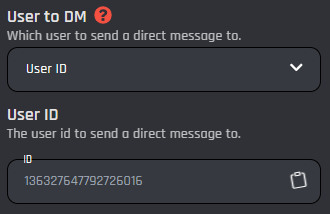
By selecting this option your Direct Message will be sent to a user specified via their user ID.
### User ID
Here you can set the ID of the user to DM. You can do this by pasting an ID directly from Discord (learn how [here](https://support.discord.com/hc/en-us/articles/206346498-Where-can-I-find-my-User-Server-Message-ID#h_01HRSTXPS5H5D7JBY2QKKPVKNA)) or using a variable that returns a user ID. These can be easily added through the variable selector by clicking the **Clipboard** button.
{% endtab %}
{% endtabs %}
## Message
In the Direct Message a User action, you have the choice for each message to be plain text, or an embed.
{% tabs %}
{% tab title="Plain Text" %}
### Content
The content of the action is the actual message that the bot should reply with when the action is triggered. You can use any variable or option in the content of this reply. These can be easily added through the variable selector by clicking the **Clipboard** button.
{% endtab %}
{% tab title="Embed" %}
### Author
The author is displayed in the top left of the embed. This can be the author who used the command or any information you wish to display.
### Thumbnail URL
You can include a thumbnail embedded into the Embed Reply. This will display in the top right of the Embed.
### Title
This is the title you wish to display in your Embed Reply. This will be centered above your Content Block.
### Description
The description is the actual message that the bot should reply with when the action is triggered. You can use any variable or option in the content of this reply. These can be easily added through the variable selector by clicking the **Clipboard** button.
### Image URL
This will display an image in full view under the Content Block.
### Footer
This is the small text at the bottom left of the embed.
### Embed URL
This will display the Title of the embed in blue text, you can click this to open an external page or image.
### Color
This is the color shown on the Left Side of the Embed Reply.
{% endtab %}
{% endtabs %}
## Reactions
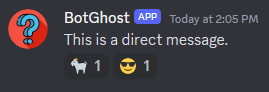
Reactions can also be added to the reply. These can be added by clicking the reactions dropdown and selecting emojis.
These reactions will be automatically added to the reply.
## Optional Variable
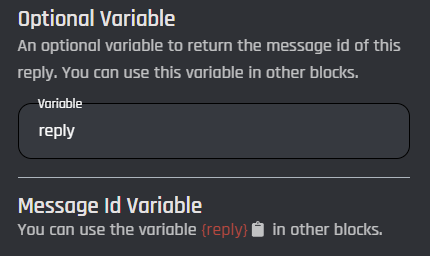
You can also create your own variable that can be used anywhere in the command to get the ID of the message sent by the action. This is useful when using [Send an API Request](/custom-commands-and-events/actions/api-actions/send-an-api-request.md) in your command / event and you need the ID of the message. Make sure that the name of the variable does not correspond to the name of a default variable or of an another action.
You can copy the variable by clicking the clipboard icon in the section right below the optional variable field.