> For the complete documentation index, see [llms.txt](https://documentation.botghost.com/llms.txt). Markdown versions of documentation pages are available by appending `.md` to page URLs; this page is available as [Markdown](https://documentation.botghost.com/ai/image-generation.md).
# Image Generation
Generate images using the Dall-E API with a given prompt.
{% hint style="warning" %}
This module requires a [Premium Subscription](/premium/premium-and-priority-hosting-plans.md#premium-plans) to function.
{% endhint %}
The [Image Generation](https://dashboard.botghost.com/dashboard/module/fab3a781-88c6-4bd6-9db0-6c2f68b36931/imagegeneration) module allows users to trigger a command to send a request to the Dall-E API to generate a imaged based off of the prompts the user inputs while using the command.
## Credentials Setup
{% stepper %}
{% step %}
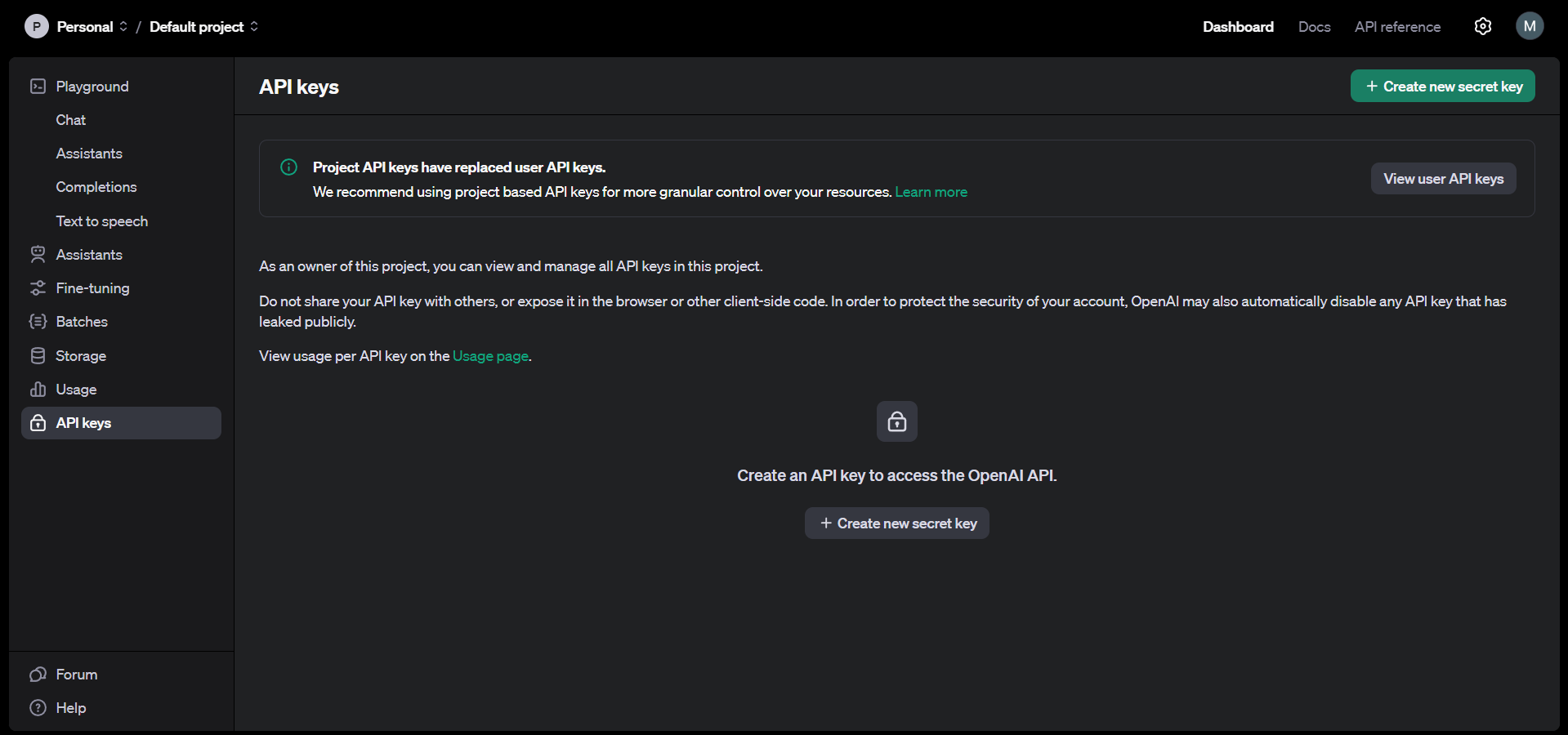
Click [here](https://platform.openai.com/account/api-keys) to get started. Log into OpenAI. If you haven't already, Open AI might ask you to verify your phone number before proceeding.
{% endstep %}
{% step %}
Once you logged in, click on the "Create new secret key button.
{% endstep %}
{% step %}
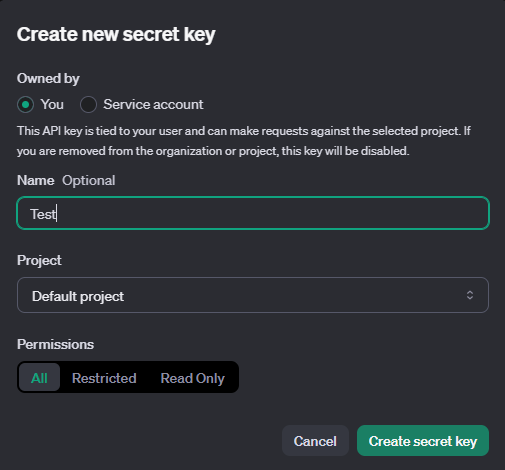
This will prompt you to make a key. Set Owned by "You" and give your app a name. Set the "Permissions" to all. Once done, click on "Create Secret Key"
{% endstep %}
{% step %}
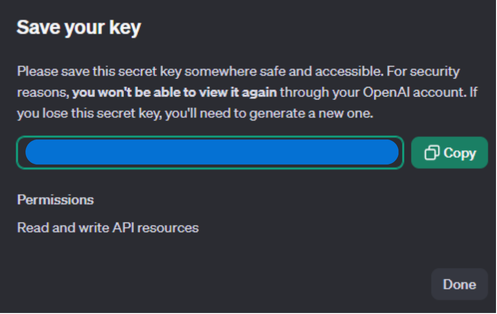
Copy your key. Make sure to not share it with anyone.
{% endstep %}
{% step %}
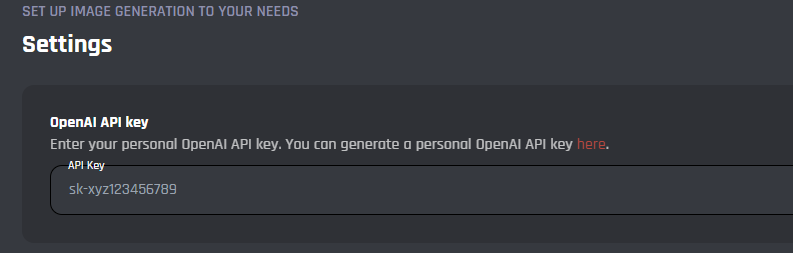
Paste your key into the BotGhost Dashboard in the [#openai-api-key](#openai-api-key "mention") field.
{% endstep %}
{% endstepper %}
***
## Settings
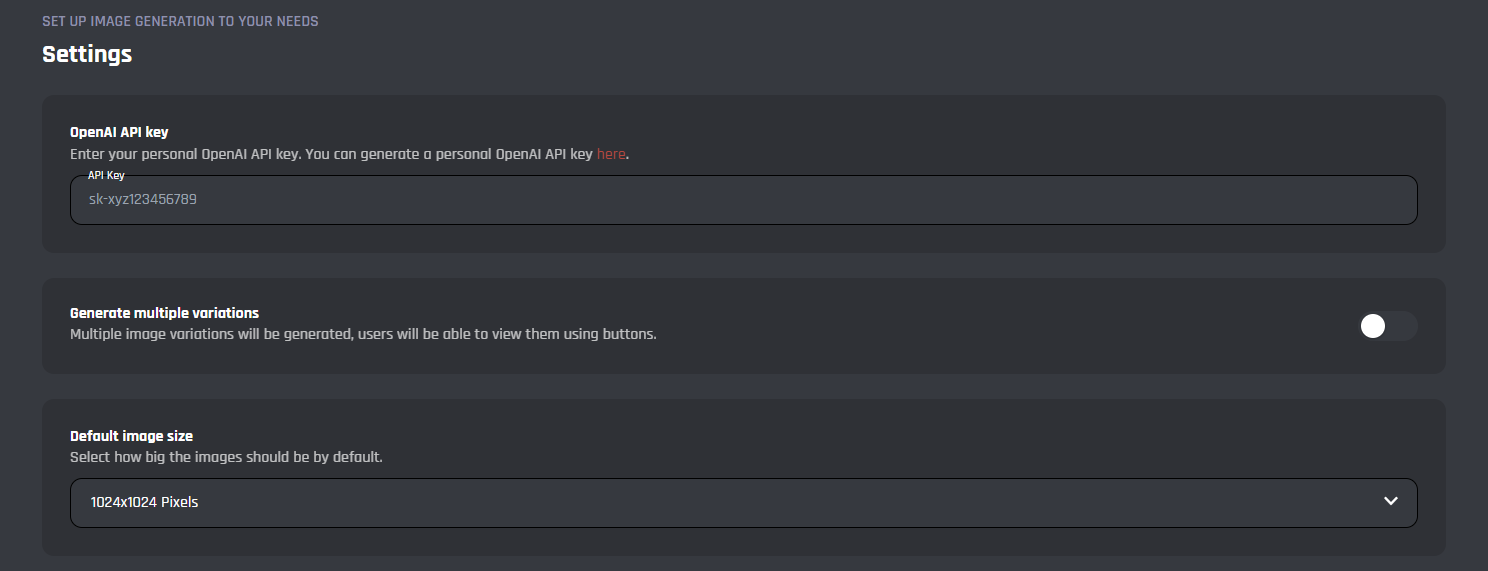
In this area you can configure the main settings for the image generation module.
#### **OpenAI API Key**
In this field is where you will need to enter your OpenAI API key to be able to use the module, you can follow this guide [here](https://platform.openai.com/docs/api-reference/authentication), to generate your own API key.
#### **Generate Multiple Variations**
With this toggle you can enable / disable the option for the bot to generate multiple variations of the image, this will allow you to see multiple versions with one trigger.
#### Default Image Size
You can choose the image size from one of the following options:
* 1024x1024 Pixels
* 512x512 Pixels
* 256x256 Pixels
***
## Commands
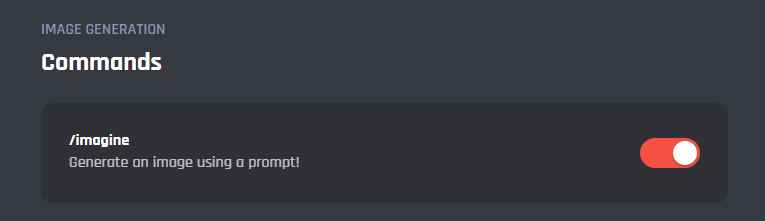
In this area, you can view and modify the commands of the Image Generation module. Below you may find some information on each command of the module.
/imagine
Upon being triggered this command generates the image(s) based upon the prompts you submit, here you can edit the command to add additional features or expand on the base module.
***
{% hint style="danger" %}
It's advised that you do not edit the commands and events unless you have a good understanding of BotGhost and its Command Builder. If you encounter any issues, you might want to reset the module for it to work again as intended.
Additionally, a copy of the edited commands / events will be created if you update the module.
{% endhint %}